How do I see sales, profit, autopay, party guest lists and mailing lists?
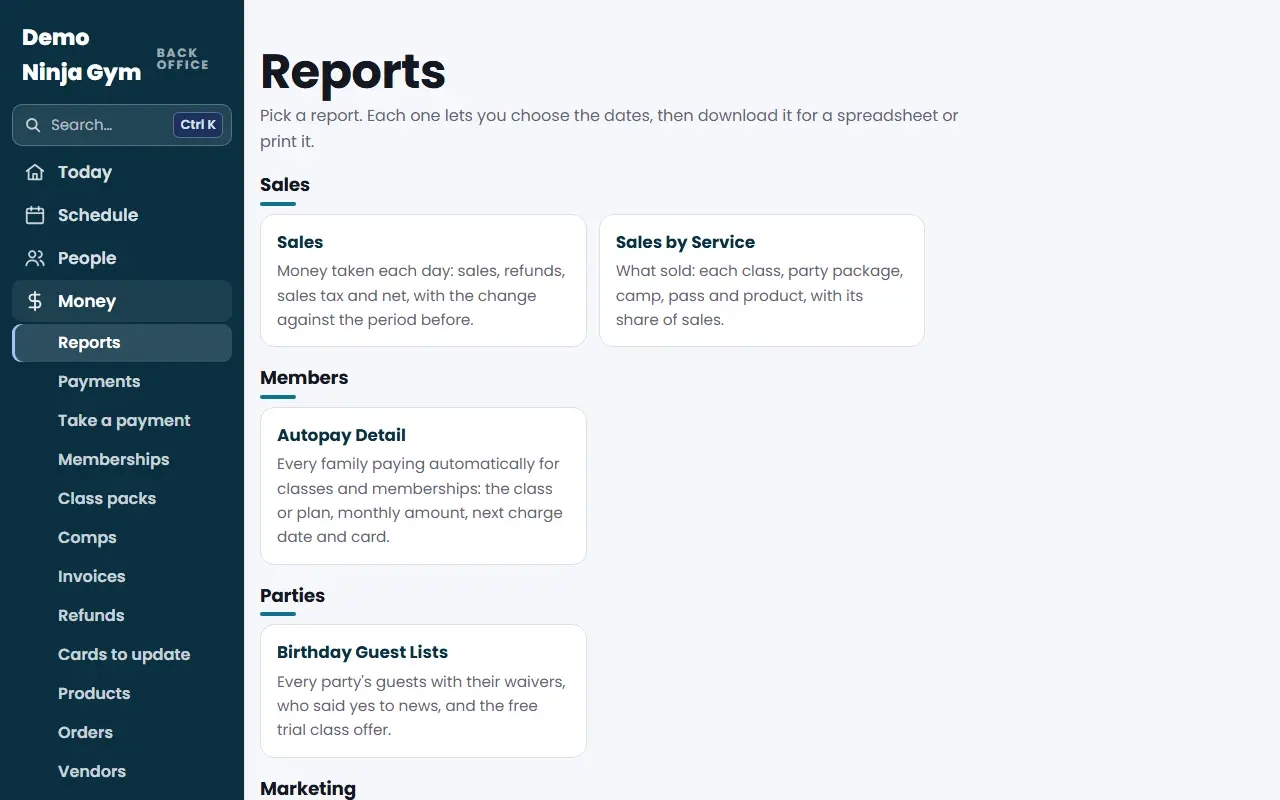
Money > Reports has sales, profit, autopay, party guest lists and mailing lists. Pick dates and location, then download, print or email it on a schedule.
Your reports are all in one place: what sold, who pays automatically, who came to each party and who you can email.
See a report
- Go to Money > Reports and pick a report. Or press the Reports tab at the top of the screen you're on: it lists the reports for that screen first. For example, Reports on Money > Payments shows Sales and the Weekly summary.
- Under Dates, pick a period such as This month or Last month. Pick Pick dates to choose your own.
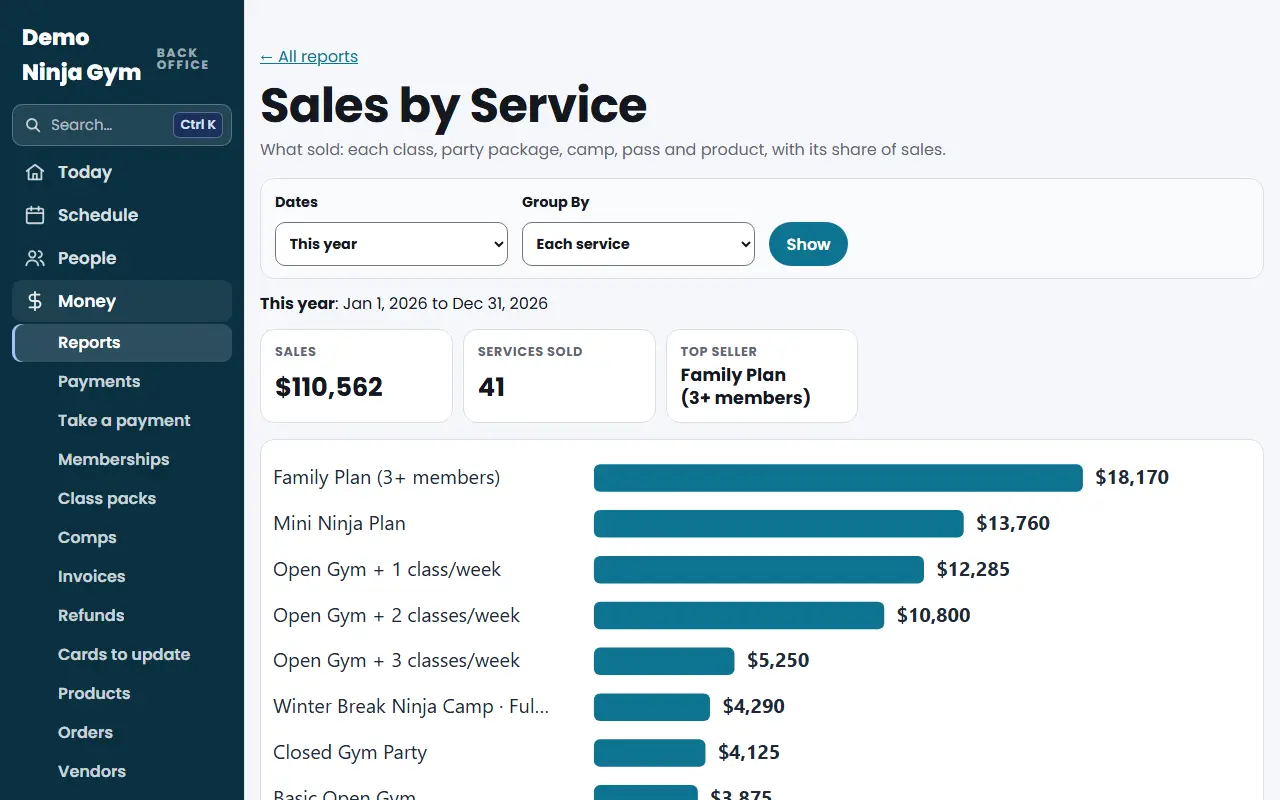
- Several locations? Pick one under Location, or leave All locations. To compare them, open Sales by Service and choose Group By > Location.
- The numbers at the top compare with the period before (▲ up, ▼ down). Green is good news and red is bad news, so a rise in refunds or costs is red. Tap a number to see what it means. Tap a column name to sort by it.
- Reports with a date, such as Sales, show a line of each day (each month for longer periods). The dashed grey line behind it is the period before, so you can see at a glance whether you're ahead. The best day has a green dot. On a computer it sits beside the report's own bar chart.
- The Total row stays at the bottom of the screen while you scroll, so you never have to scroll down for the totals.
Pages of rows
A report shows 25 rows at a time (on a phone, 25 cards), so it opens quickly and you don't scroll forever.
- Under the report it says which rows you're looking at, such as Rows 26–50 of 3,214. Press Next, Previous or a page number for more.
- Rows per page shows 50, 100, 250 or 500 rows instead. The choice stays on the report while you use it, and a saved view keeps it.
- The Total row, the numbers at the top and Download always cover every row, not just the page you see.
- Changing the sort or a filter starts again at the first page.
- While a report loads, a spinner says Loading the report.
- Families at a very busy gym counts its purchases every few minutes, so it opens quickly. The number of families says when it last counted. Press Count again to count right now.
Build your own report in ChatGPT or Claude
Connected your gym to ChatGPT or Claude (Settings > AI connector)? Ask it for any of your report numbers, for any dates, split by day, week, month, location or type, and it can make the table or chart for you. For example: "Net sales by month this year", "Check-ins by location last quarter" or "Profit and margin by type for last month". It reads the totals your reports keep for each day, so answers come back quickly even for years of data. It gets numbers only, never anyone's name, email or phone. Money numbers are for owners. If it asks a lot of questions in one hour, it is asked to wait a little, so your website stays quick.
Sort, move and hide columns
Every report works the same way, and nothing reloads the page.
- Sort: tap a column's name. Tap it again to flip the order.
- Move a column (computer): drag its name onto another column.
- Columns and sort: press Columns and sort for a list of the columns. Drag a column, or use its up and down arrows, to change the order. Press Hide to take a column off the report and Show to bring one back. Pick Sort by and the order at the top. This is the way to sort on a phone. Some reports keep extra columns under Hidden, ready to show.
Find a report
At the top of Money > Reports, type in Find a report (for example "guest" or "autopay"): the list narrows as you type. Press List to see every report as one compact list, or Grid for cards. Your choice is remembered on that device.
Filter
Filters, Save this view and Schedule open in a pop-up, so the table stays where it is. Close a pop-up with the × button, Esc or a tap outside it. On a computer every other row is shaded and the row under your pointer is highlighted, to make long rows easy to follow.
- Press Filters in the row of buttons above the table. The filters open in a pop-up.
- Each column has its own row. Fill in any of them: words it has, a number or date From and to, or tick the values you want.
- Press Apply.
- The filters in force show above the table, with how many rows are left. Press a filter's × to take it off, or Clear all filters.
- The Total row adds up only the rows you see. Download (CSV) has the same columns, order, filters and totals.
- Bookmark or share the page's link to come back to this view. Reset columns and filters goes back to the report's own view.
Full screen
Lots of columns? Press Full screen to give the report the whole screen. Use Report in the bar at the top to switch to another report; sorting and filtering keep you in full screen. Press Exit full screen (or Esc) to go back.
Save your own view or a new report
- Set up a report the way you like it: the dates, location, columns and filters.
- Press Save this view in the row of buttons above the table. In the pop-up, type a name and choose A saved view of this report or A new report under My reports.
- Owners can tick Share with managers (money reports stay owners only).
- Press Save. A saved view is under Saved views on that report; a new report is under My reports at the top of Money > Reports.
- To change one, open it, change what you see, then use Change and Update. To delete it, tick the box under Change and press Delete.
You can also ask your AI assistant, for example "Save a report of party packages last month, sorted by net".
Get a report by email
- Open the report, or one of your saved views, set up the way you want it.
- Press Schedule in the row of buttons above the table. The schedule opens in a pop-up.
- Pick How often: every day, every week (pick the day), every month (pick the day, or the last day) or after each pay period (for that pay period's dates).
- Pick the Time. It's your gym's own time zone.
- You always get it. Tick any other owners or managers who should too. Managers never get money reports.
- Press Schedule the email.
Each email has the report's numbers, the first 25 rows with your columns, filters and sort, the whole table as a spreadsheet file (CSV) and a link to open the report. Nothing is sent before your website is live.
To see them all, open Money > Reports > Scheduled: one table with each report, when it goes (and the next send) and who gets it. Press Change to pick another day, time or people, Pause, Send me one now or Delete. Owners see everyone's and can change, pause or delete any of them. Anyone who gets one can press Stop sending it to me at the bottom of the email.
You can also ask your AI assistant, for example "Email me the Sales report every Monday at 7 AM".
See more about a class, party or customer
Names in a report that you can tap are underlined.
- A customer: their whole account opens: family, classes, memberships, packs, waivers, visits, parties, what they spent (all time and the last 12 months) and any balance due.
- A class: its coach, tuition, who is enrolled now, the last 90 days' visits, fill rate, revenue, costs and profit, what's coming up and a month by month table.
- A party: the day and time, host, guests and waivers, what was paid and what's still due, the coach, and the party's cost and profit.
- A camp, competition, product or membership: dates, bookings or registrations, what sold, and a link to open it.
Money shows only to owners. Press × or Esc to close the pop-up.
Set your costs for Cost and Profit
- Go to Settings and scroll to Report costs.
- Fill in what you know: space per hour (your monthly rent and bills divided by the hours you're open in a month), party supplies per guest, the cost per party, per camper, per athlete, the league fee per athlete and your card fees (about 3%).
- Press Save Report Costs, then See Cost and Profit.
- Coach pay comes from each person's pay rate under People > Staff time & pay, and from the shifts on the Staff schedule. Put coaches on shifts for classes and parties (Fill from classes does it in one go) for the most accurate numbers.
What the numbers mean
On Money > Reports, press What the numbers mean. Every number in your reports is listed in plain words, with which way is better. The same words open when you tap a number on a report. The AI assistant reads them too, so you can ask it what a number means.
Download or print
- Press Download (CSV) to open the report in Excel or Google Sheets. The file has every row and the totals.
- Press Print for a paper copy. The buttons and filters are left off the printout.
The reports
- Sales: money taken each day, with refunds, sales tax and net. Tap a day to see its payments.
- Sales by Service: each class, party package, camp, pass and product, with its share of sales. Pick Type of sale to see the totals by type.
- Cost and Profit: what each class, party, camp and competition brought in, what it cost and what was left. Coaches come from the staff schedule and pay rates; other costs (space, supplies, league fees, card fees) from Settings > Report costs. Pick Show to see only classes, parties, camps or competitions. Pick Group By > Each day (trend) to see profit day by day on the chart, or Classes, parties, camps, competitions for one line each. The tiles show margin and revenue per coach hour.
- Autopay Detail: every family paying automatically for classes and memberships, with the class or plan, monthly amount, next charge date and card. Pick Class tuition only to see class enrollments alone. Pick Card problems and past due to see who needs a new card.
- Birthday Guest Lists: every party's guests, their waivers, who said yes to news and whether the free trial offer went out.
- Mailing Lists: who you can email, list by list, and who agreed to texts. Press Email this list to write to them.
- Tips: each tip from parties and the register, or each person's total (Show > Each person), ready for payroll.
- Hours by Person: hours, overtime, breaks and estimated pay for each person. Pick Approved shifts only to see what payroll pays. Pay settings stay on the Hours report screen.
- Attendance: check-ins for each class or each day, and members who haven't come in these dates.
- Locations Side by Side (two or more locations): each location's enrollments, fill rate, trials, camps, parties, sales, check-ins and staff.
- Families: every family that has bought from you, what they spent, how often, what they bought and their group (Champions, At risk...).
- Growth by Month: the last 12 months of revenue, new families, registrations, parties, website visits, members and subscribers.
- Website Pages: each page's views and visits, where visits started and ended, and how far people scrolled.
- Searches We Track: the Google searches Local search checks, how many people search each month and where you rank.
Questions
How do I put the columns back the way the report comes?
Press Columns and sort, then Reset. The columns, their order and the sort go back to the report's own; your dates and filters stay.
How do I use reports on my phone?
Each report fits your phone. The totals are at the top, each row is a short card, and the buttons sit in one row (Filters, Columns, Save, Schedule, Download, Full screen). Tap Change the dates to pick other dates, and How this report works to read how the numbers are worked out.
Can I get a report by email every week?
Yes. Open the report (or a saved view), press Schedule, pick how often (every day, week, month or after each pay period), the day and the time, and tick anyone else who should get it. Each email has the numbers, the first rows and the whole table as a spreadsheet file.
How do I stop or change a scheduled report email?
Open Money > Reports > Scheduled. Every scheduled report is in one table with when it goes and who gets it; press Change to pick other days, times or people, or Pause or Delete. Owners can change anyone's. Anyone who gets one can also press Stop sending it to me at the bottom of the email.
Can I save a report with my own columns and filters?
Yes. Press Save this view on the report, name it, and choose a saved view of that report or a new report under My reports. It keeps the dates, location, columns, order, filters and sort.
Can I see more about a class or a party from a report?
Yes. Tap its underlined name. A pop-up shows everything about it, such as revenue, coach cost, profit, visits or guests, and what's coming up. Money shows only to owners.
Can I hide columns or change their order on a report?
Yes, on every report, without reloading. Drag a column's name onto another on a computer, or press Columns and sort to move columns with arrows or by dragging, Hide them or Show them again. The download follows the same columns.
Do the totals change when I filter?
Yes. The Total row adds up only the rows left after your filters, and says how many rows that is.
Is there a quicker way to the report for the screen I'm on?
Yes. Most screens have a Reports tab at the end of the tabs at the top, for example on Payments, Memberships, Parties and Staff time & pay. It opens Reports with the ones for that screen first.
Who can see the reports?
Owners see every report. Managers see Birthday Guest Lists and Mailing Lists, but not the money reports. Staff in front desk mode don't see reports.
Why does a location show less than All locations?
Every sale records where it happened, from what it was for (a class, party, camp, special event or competition) or the Front Desk computer it was rung up on. Online shop orders, gift cards and donations belong to every location, so they show only under All locations.
How do I compare my locations' sales?
Open Sales by Service and choose Group By > Location. Each location gets a row with its sales, refunds, net and share.
How do I send party guests a free trial class offer?
It goes by itself the morning after each party, to parents who said yes to news. To send one yourself, open Birthday Guest Lists and press Email party guests a free trial offer. Your email opens with that list picked.
Can I open a report in Excel or Google Sheets?
Yes. Press Download (CSV) and open the file. It has every row, with the totals at the bottom.
Where does Cost and Profit get coach pay?
From the Staff schedule. Each published shift for a class or party counts at that person's pay rate from Staff time & pay (the party rate on party shifts). A class or party with no shift counts its coach for its length. Clock-ins aren't tied to a class, so they aren't used here.
What goes in Report costs?
What the report can't know by itself. That means space per hour, party supplies per guest and per party, cost per camper, cost per athlete, the league fee per athlete and card fees. You can also add payroll taxes and a fallback coach rate. Set them in Settings > Report costs.
How are memberships counted in a class's revenue?
Class tuition counts for its class. A membership that isn't for one class is shared out by visit: every check-in on a membership gets an equal part of the membership payments in those dates.
Why is a rise in refunds or costs shown in red?
Each number knows which way is good news. Sales and profit are better higher, so a rise is green. Refunds, coach pay and other costs are better lower, so a rise is red, still with an up arrow. A change in a percent, such as the margin, is shown in points (+3 pts).
Why does a tile say "was -$120 the period before" instead of a percent?
A percent change from a loss or from nothing doesn't mean anything, so the tile says what the number was instead.
Do Sales, Sales by Service and Cost and Profit always agree?
Yes. All three read the same daily numbers, kept each night for every day and worked out live for today. If you change your Report costs or a pay rate, past days are worked out again with the new ones.
When does a camp booking count in Cost and Profit?
On the day it was paid, the same day Sales shows it, even if the camp runs later. Coach pay for a camp counts on the camp's own days.
What does Monthly mean on Autopay Detail?
What each membership comes to per month. Weekly and yearly plans are converted, so the total is your monthly autopay.