How do I connect Stripe to take online payments?
Open Settings > General, find Payments, and press Create a Stripe account or Link my Stripe account. Money goes straight to your own Stripe account.
Stripe is the service that takes card payments for your gym: competition entries, memberships, camps, parties, the shop and gift cards. The Stripe account is yours. NinjaHQ only builds the checkouts on top of it.
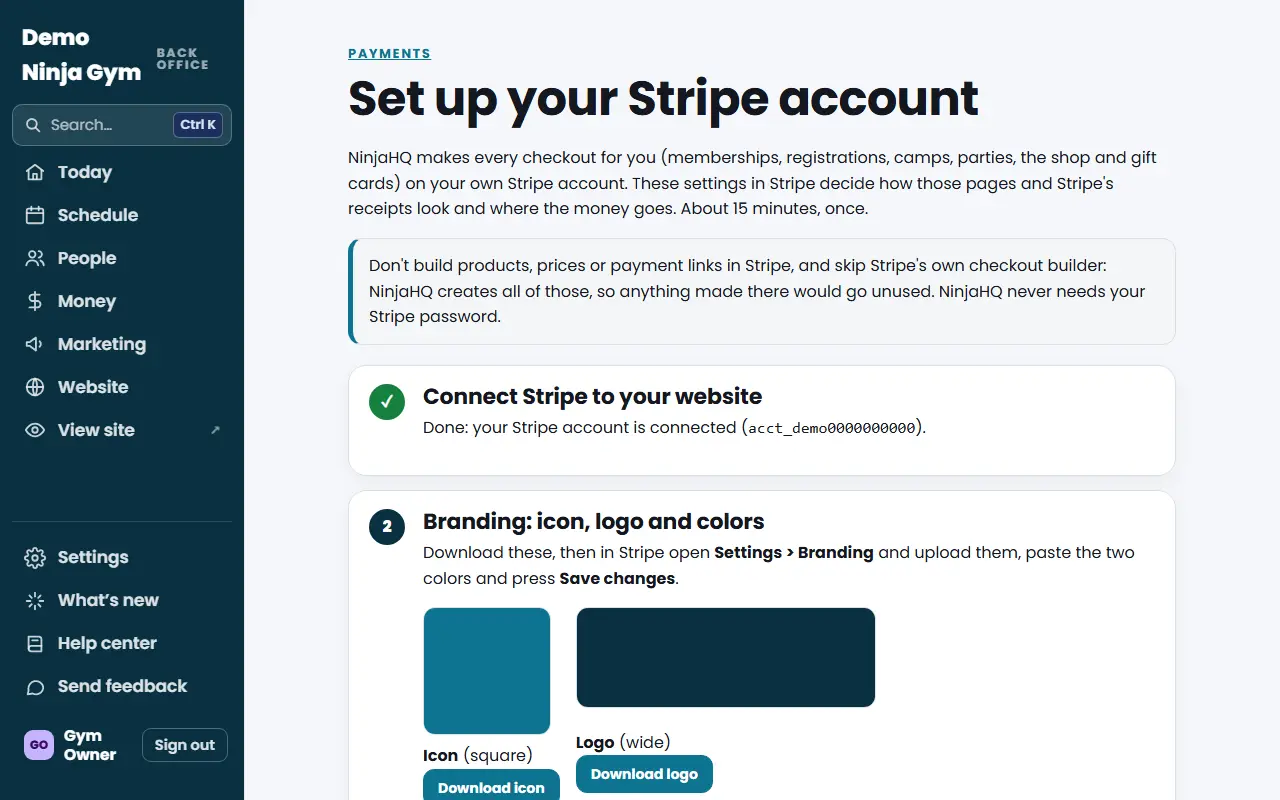
Before you begin
- You need to be an owner of the gym in the back office.
- Have your business details and the bank account for payouts handy if you are making a new Stripe account. Stripe asks for them.
- If you already have a Stripe account, you will sign in to it during these steps.
Steps
- Open Settings > General in the back office and scroll to the Payments section. (The Stripe setup guide is linked from the top of that card.)
- Pick the choice that fits you:
- I already use Stripe: press Link my Stripe account, sign in to Stripe and approve.
- I'm new to Stripe: press Create a Stripe account and follow Stripe's questions about your business and your bank account.
- If Stripe still needs details, the Payments card says Almost there and lists what Stripe is asking for, in plain words (for example, the bank account for payouts or a support phone number). Press Continue with Stripe to finish them.
- Press Re-check status after you finish in Stripe.
What you'll see
When Stripe is ready the card shows Stripe connected with your business name, and a green panel that says You're all set to take payments. A folded section, See what families will see at checkout, shows a drawn preview of your checkout and a list of setup checks. Each missing item links to the matching step in the Stripe setup guide.
If you linked an account you already had, you will also see a Payment history from Stripe card. Press Bring in payment history to copy your past Stripe payments into NinjaHQ. It shows date, amount, refunds, what it was for and who paid, never card details. New payments are added every night after that.
Next, work through the Stripe setup checklist so your checkout shows your logo and colors.
Troubleshooting
The card says Not available yet. Stripe is not switched on for the NinjaHQ platform yet. Use Send feedback in the back office to tell NinjaHQ.
The Link my Stripe account button is missing. NinjaHQ is still finishing that option. You can still choose Create a Stripe account.
It says that Stripe account is already linked to another gym. One Stripe account can serve only one gym on NinjaHQ. Contact NinjaHQ if it should move to this gym.
I want to switch to a different Stripe account. Under Already use another Stripe account with your payment history? press Link that account instead. It replaces the one connected now. You can also press Disconnect; online payments stop until a Stripe account is connected again, and payments already made stay in your Stripe account.
Questions
Does NinjaHQ hold my money?
No. Every payment goes straight to your gym's own Stripe account and then to your bank. NinjaHQ never sees card numbers and money never passes through NinjaHQ.
Can I connect a Stripe account I already use?
Yes. Choose I already use Stripe. Your customers and past payments come with it, so Insights and each contact can show your full history.
Will I be charged before my website goes live?
No. Nothing is charged before your website goes live.