How do I find a payment or see all my sales?
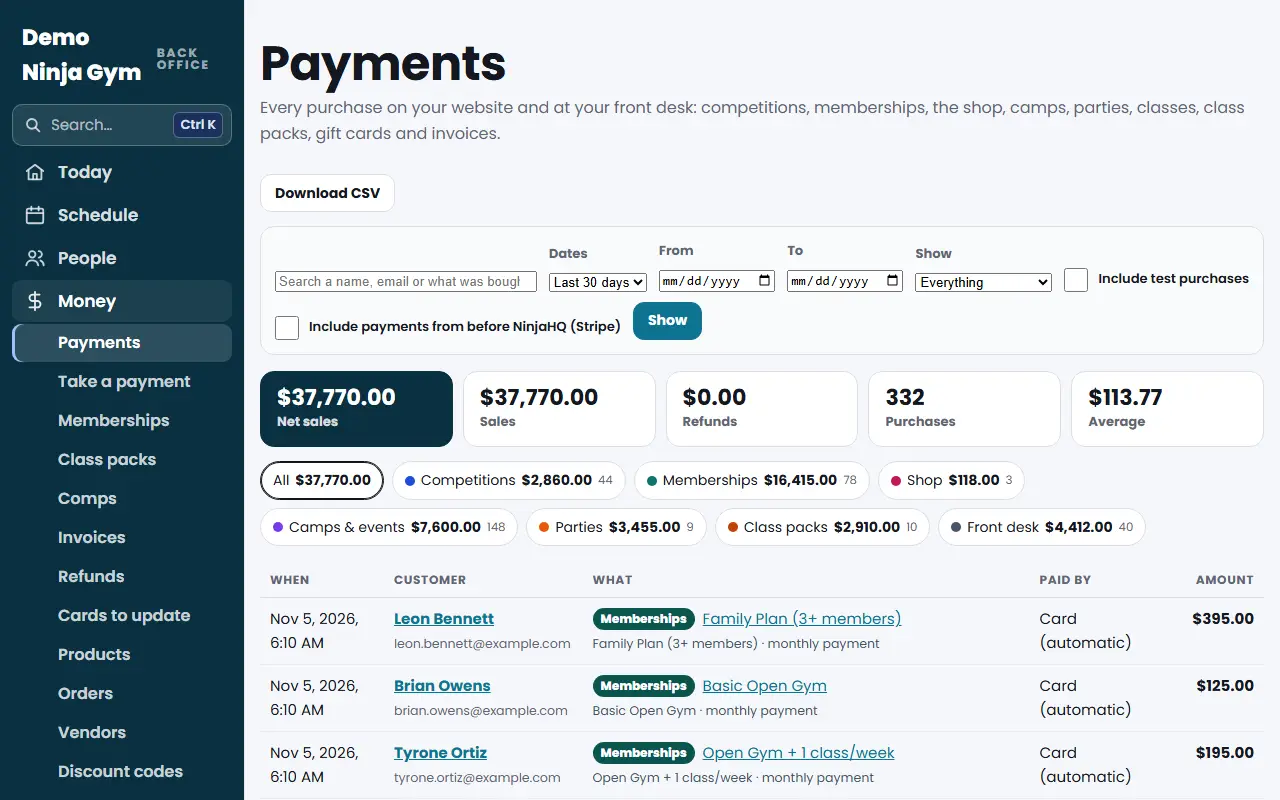
Open Customers > Payments for every purchase in one list. Filter by dates, type, name or refunds, and press Download CSV to take the list to your accountant.
Payments is one list of every purchase on your website and at your front desk: competitions, memberships, the shop, camps and events, parties, classes, drop-ins, class packs, gift cards, donations, register sales and invoices.
Before you begin
- Only owners can open this page.
- Before your website goes live, everything in the list is a test purchase made with the test card.
Steps
- Open Payments under Customers.
- Use the search box to type a name, an email or what was bought.
- Pick the Dates (Today, Last 7 days, Last 30 days, This month, Last month, This year or All time), or fill in From and To for your own range.
- Use Show to switch between Everything, Paid (not refunded) and Refunds.
- Press one of the colored type chips (for example Competitions or Shop) to see only that kind of sale. Each chip shows the money and the number of purchases.
- Press a customer's name to open their contact page. Press what they bought to open the matching screen, such as the competition or the order.
What you'll see
- Tiles across the top: Net sales, Sales, Refunds, number of purchases, the Average and, if any was collected, Sales tax collected.
- Each row says when, who, what, how it was paid (for example Card online, Card reader, Cash, Card on file, Gift card, Invoice paid online) and the amount. Sales tax is shown as "incl. $X tax", and refunds are shown on the purchase they belong to.
- Under the "what" you will often see a small note that explains a price: a double-header discount, a discount code or gift card that was used, or "Comped (no charge)". This answers "why did they pay $65?"
- Tick Include test purchases (after launch) or Hide test purchases (before launch) to control test payments. Tick Include payments from before NinjaHQ (Stripe) to add the history you brought in from an existing Stripe account.
- Press Download CSV to get the same list as a spreadsheet, using the filters you chose.
Troubleshooting
A purchase is missing. Check the dates and the Show and type filters, and whether test purchases are hidden. Only paid and refunded purchases are listed, not unfinished checkouts.
I need to refund something I found here. Payments is a list, not a place to refund. See How do I refund a payment?.
The totals do not match my bank deposit. Stripe pays you the net amount after its fees, a few days later. See Where do my payouts go?.
Questions
Does the list include cash taken at the front desk?
Yes. Register sales show with how they were paid, such as Cash, Card reader or Card on file.
Why can I not open Payments as a manager?
Payments stay with the owners. Managers and staff do not see this page.
Where are the card fees?
In your Stripe account. The Payments page shows what the customer paid.