Families check themselves in
Put a tablet by the door. A parent types the last 4 digits of their phone, taps their kids and the class, and they're in: their membership or class pack is used automatically. No waiver yet? They sign it right there, or on their own phone with a QR code. Your front desk is free for the families who need a person.
A family checks in, start to finish. Sample data.
Four taps, then go play
Big buttons, plain words, nothing to download. It works for a parent juggling a toddler and for a teenager checking in alone.
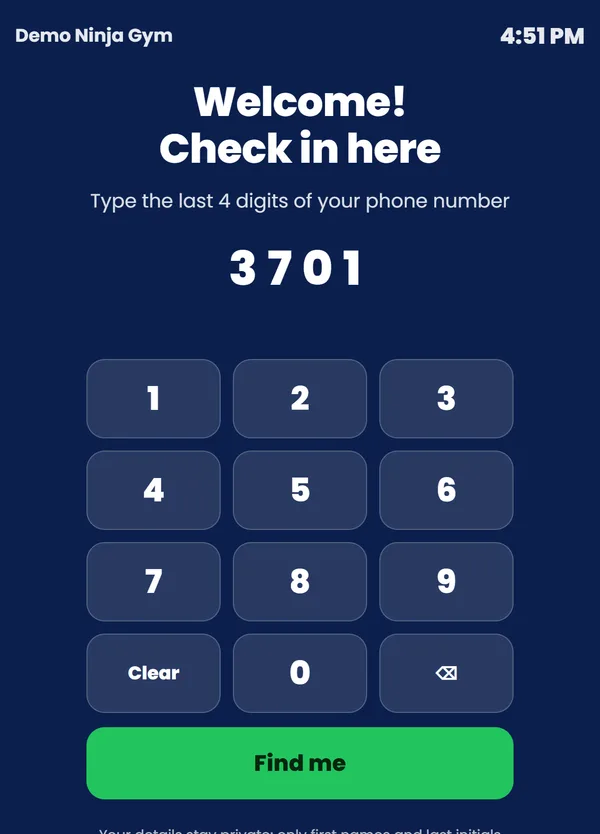
1. The last 4 digitsOf the phone number the gym has for them. 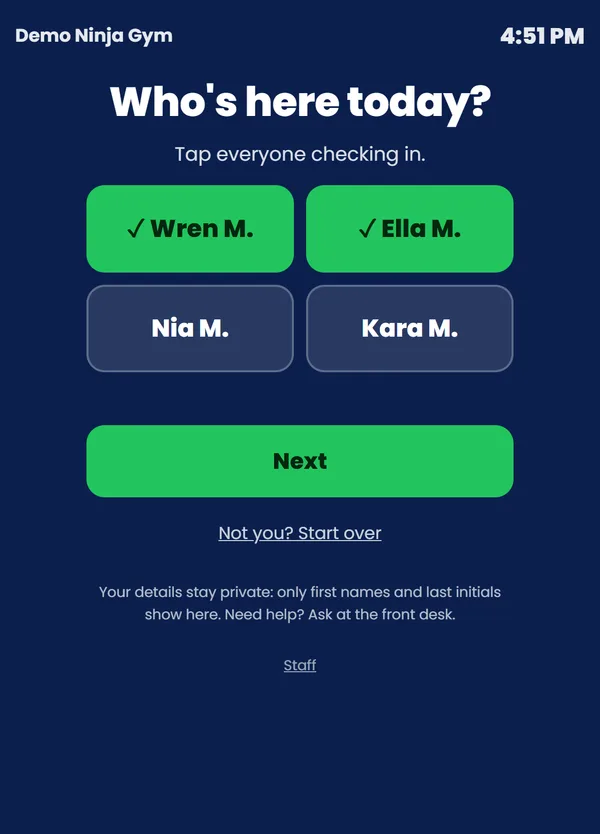
2. Tap who's hereFirst names and last initials only. 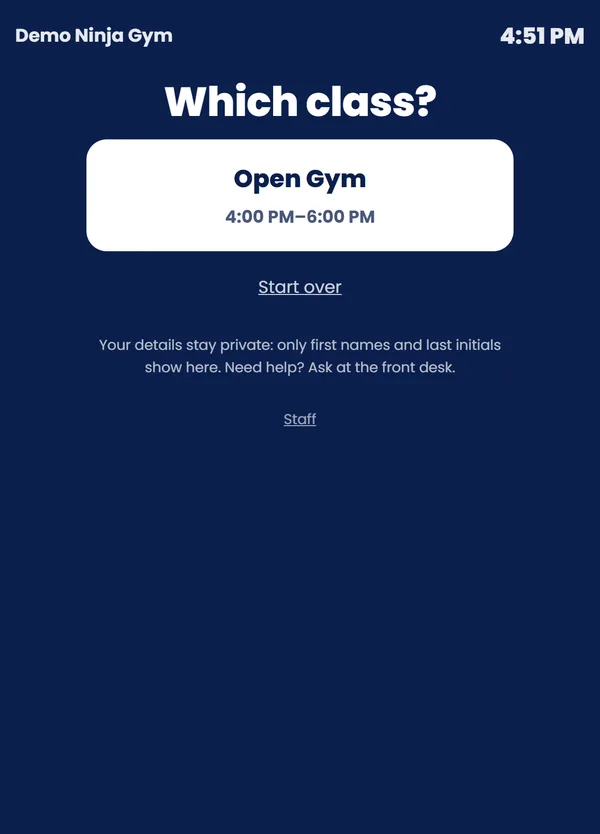
3. Pick the classOnly what's on now or starting within the hour. 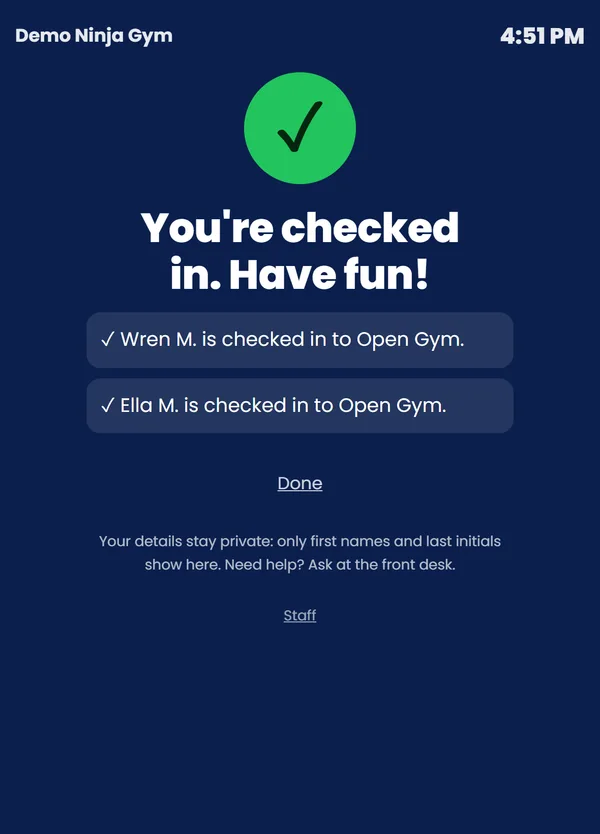
4. Checked inThe screen clears itself for the next family.
Paid for, automatically
A booking for that class comes first, then their membership, then a class pack. Each check-in is recorded like one your staff made.
The whole family at once
Siblings and a parent who trains too are all on one screen. Tap everyone who came today.
Nothing to pay on the tablet
When nothing covers the visit, the kiosk kindly sends them to the front desk. No card is ever typed on it.
Screenshots and videos from a demo gym with sample data.
They sign it right on the tablet
If a child has no signed waiver, or theirs has run out, the kiosk says so and opens your gym's waiver on the spot. As soon as the parent signs, the kids are checked in.
- Guided, like signing a lease onlineA Next button jumps to whatever is still needed: initials, the children, an emergency contact, the signature.
- One signature covers the familyA parent adds every child to the same waiver, with a medical question for each one.
- Filed and emailedThe signed waiver lands in your back office and the parent gets their own copy by email.
- Everyone else checks inA brother whose waiver is fine is checked in straight away; only the kids who need one wait.
From "Almost there" to checked in. Sample data.
Parents can sign on their own phone
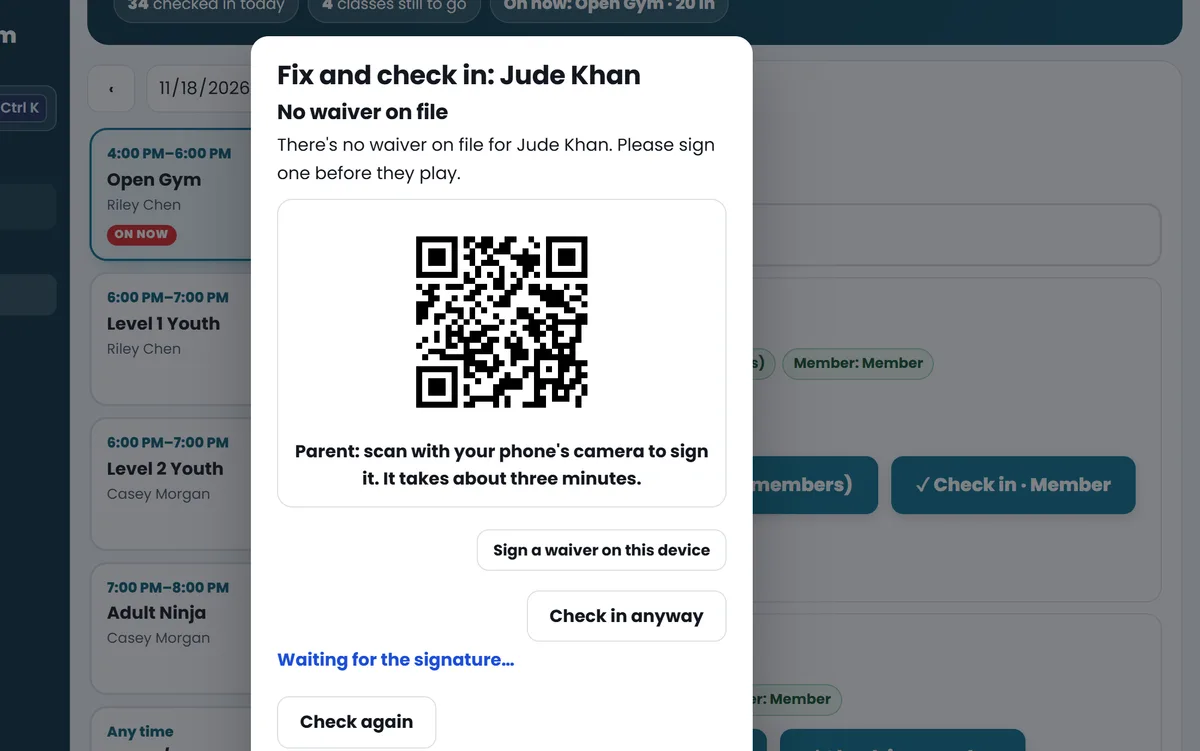
When a walk-in reaches your front desk without a waiver, Check-in shows a QR code. The parent signs on their phone while your staff carry on, and the child is checked in by itself the moment it's signed.
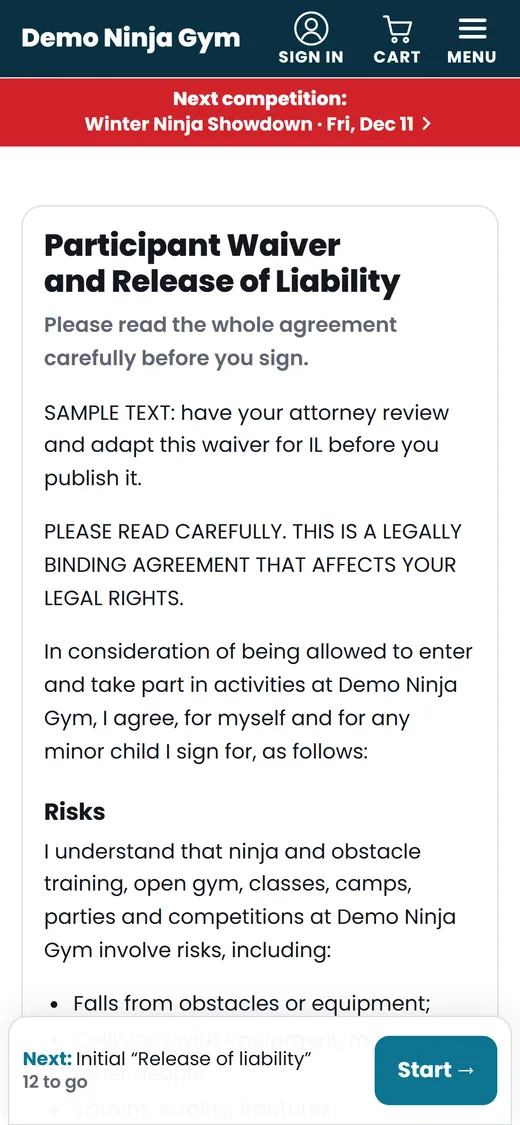
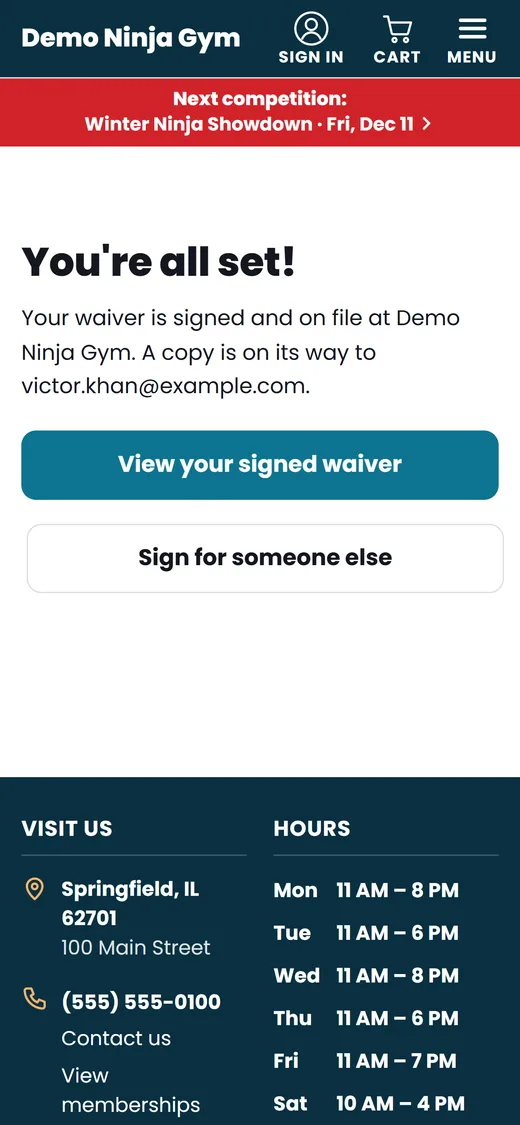
The front desk on the left, the parent's phone on the right. Sample data.
How a parent uses the QR code
- Open the phone's cameraNo app to download. Any iPhone or Android camera reads it.
- Point it at the code on the screenA link to your gym's waiver pops up. Tap it.
- Fill it in and signThe same guided waiver, sized for a phone: initials, the children, a signature with one tap or a finger.
- That's itThe desk sees the signature within seconds and checks the child in. The parent gets a copy by email.
The link holds no personal details: it opens your gym's blank waiver, or a renewal with last year's details to check. Staff can also tap "Sign a waiver on this device" or "Check in anyway".
Check in a whole class in two taps
The kiosk handles the regulars. The Check-in screen at your front desk got faster too.
- Select all, then Check inTick the kids who are here, or Select all, and one button checks them in. Undo puts the group back.
- Missing waivers firstBefore a group check-in, anyone without a valid waiver is shown first, so nobody slips through.
- A family by phone numberType 4 or more digits of a parent's phone to see every child in that family, ready to tick.
- Regulars in one tapKids who usually come are listed, and the way they paid last time is used again.
- Fix and check inOne pop-up asks only for what's missing: the waiver (with the QR code), a drop-in payment, or an email and phone number.
- Parties and camps on the same screenToday's birthday parties and camps sit at the top: party guests marked Arrived with a waiver QR for children added at the door, and campers checked out to the people on their pickup list.
- Kiosk check-ins on the same listMarked "Self check-in kiosk", with Undo if something was wrong.
Ten kids, two taps. Sample data.
Any tablet. About a minute.
Open it on the tablet
Sign in to your back office and go to Front desk > Self check-in kiosk. An iPad, an Android tablet or a laptop all work: it runs in the web browser.
Pick an exit code
Four to eight digits only your staff know, then tap Start. The tablet is now locked to the kiosk.
Put it by the door
It shows only today's classes that are on now or starting soon, and clears itself for the next family when nobody is using it.
Leave when you like
Tap Staff and enter the exit code, or any staff member's time clock PIN.
A tablet in the lobby that doesn't overshare
First names, last initials
"Wren M." and "Ella M.", never a full name, an email or a phone number.
Shared digits? Whole number
If more than four families share the same last 4 digits, the kiosk asks for the whole phone number.
Only who it found
A name can be checked in only right after a lookup found it, and only for 20 minutes.
The kiosk, answered
Do families need an app?
No. They type the last 4 digits of their phone on your tablet. A parent who signs by QR code uses their phone's camera and web browser.
Which tablet do I need?
Any tablet or computer with an up-to-date web browser: an iPad, an Android tablet or a laptop. There's nothing to install.
What if their membership ran out or they have no class pack?
The kiosk tells them to see the front desk, where your staff can sell a drop-in, a pack or a membership. The tablet never takes payments.
What if a child has no waiver?
The parent signs your waiver right on the kiosk, and the child is checked in once it's signed. Children whose waivers are fine are checked in straight away.
Two families have the same last 4 digits. What happens?
Each family taps their own names. If more than four families share those digits, the kiosk asks for the whole phone number.
Can someone walk off with the tablet into the back office?
No. Once started, the tablet only shows the kiosk. Leaving it needs the exit code or a staff time clock PIN, with five tries per ten minutes.
Can families check in with a QR code instead of digits?
Yes. Every family has its own check-in QR code in My account (a screenshot works too). Connect a USB or Bluetooth barcode scanner to the tablet, and one scan brings up the whole family, ready to pick who's here and the class. At the front desk, staff can also scan it with the tablet's camera.
Keep exploring
Give your gym the HQ it deserves
Give us your current website and we build your new one, free to explore. No payment before you approve launch. Prefer a walkthrough? Request a 30-minute demo with a Ninja HQ expert.