How do I know my changes are saved?
Change anything on a page with a Save button and an Unsaved changes bar appears at the top of the screen, like Shopify's. Press Save in it, or Discard to undo.
Most back-office pages save when you press their Save button, not as you type. So you never have to wonder, the back office tells you when something is waiting to be saved and stops you from losing it by accident.
Before you begin
- This works on every back-office page with a Save button, on a computer and on a phone.
- Pages that act right away (search boxes, filters, buttons such as Check in or Send) have nothing to save and never show the bar.
Steps
- Change something: type in a box, tick a box, pick from a list.
- A dark bar appears at the top of the screen: Unsaved changes.
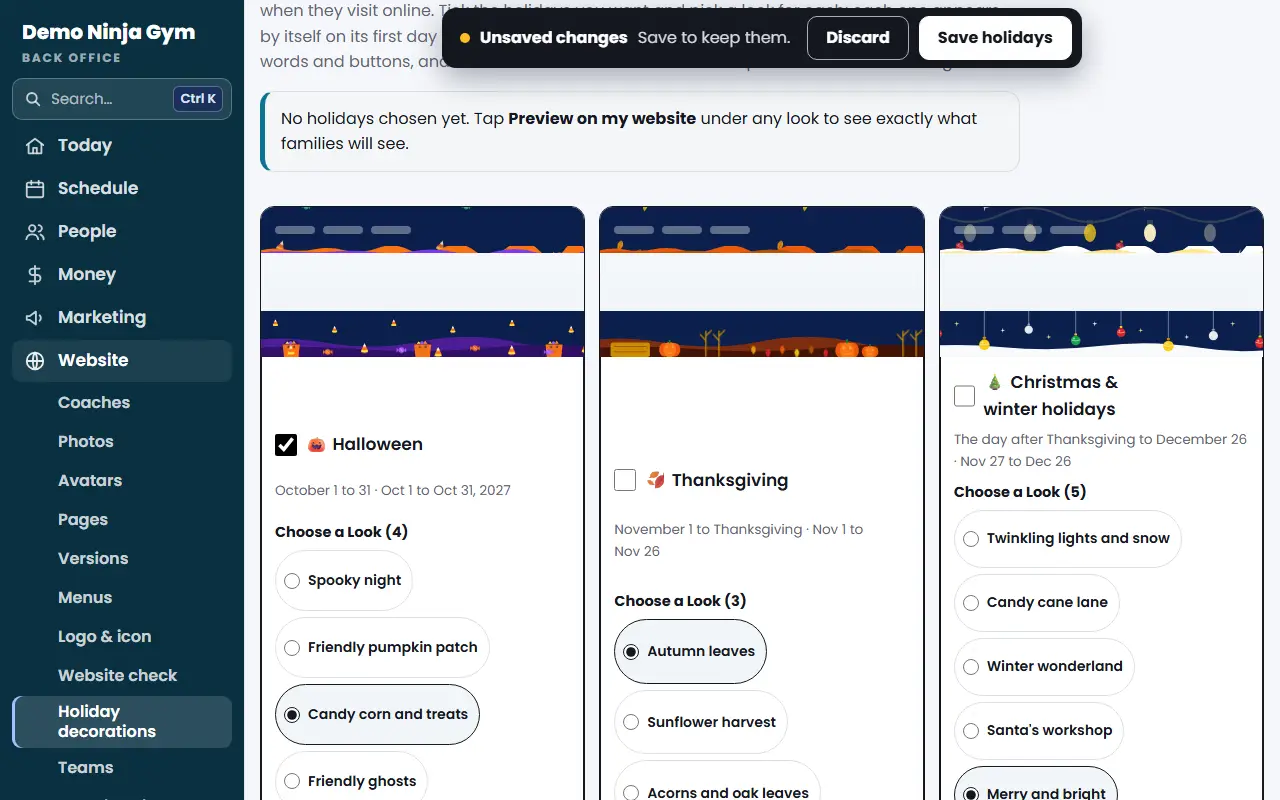
- Press the Save button in the bar (on a computer it carries the page's own words, such as Save holidays). You can also scroll to the page's own Save button; they do the same thing.
- To undo what you changed instead, press Discard, then Discard changes. The page goes back to how it was last saved.
What you'll see
After saving, the page reloads with a green note at the top (the page's own message, or Saved.) and the bar goes away. The bar also goes away by itself if you put things back the way they were.
If you try to leave first. Click a menu item, a link or a search with unsaved changes and a box asks Save or discard your changes? with three choices:
- Save and continue saves, then opens the page you asked for.
- Discard and leave drops your changes and opens it.
- Keep editing stays where you are.
Closing the tab, pressing Back or reloading shows your browser's own "Leave site?" question instead. Choose to stay if you still need to save.
Pages with more than one Save button. Some pages, such as Settings, have several sections that each save on their own. Saving one reloads the page, so when you start changing a second section while the first still has unsaved changes, a box asks Save your other changes first? Save or discard the first section, then carry on.
Troubleshooting
I pressed Save in the bar and nothing happened. A required box is probably empty or has something the page can't accept. Your browser moves to that box and says what it needs. If the save was refused, the reason shows in red next to the page's own Save button, and the page scrolls to it.
The bar is still there after I saved. The save did not go through. Look for the red message, fix it, and press Save again.
The bar covers something I need. It shouldn't: the page grows by the height of the bar, so you can always scroll the last button clear of it. If you find a spot where it does, tell us with Send feedback.
I left and my changes are gone. They were not saved: either you chose Discard and leave, or you told the browser to leave. Changes that were saved can be looked up, and often undone, in History.
Questions
Do I have to scroll down to the Save button?
No. The Save button in the Unsaved changes bar does the same thing as the page's own Save button, wherever you are on the page.
I pressed Discard by mistake. Can I get my changes back?
Discard asks first. Once you confirm, what you typed is gone, because it was never saved. Anything saved earlier is still there.
Why didn't the bar appear when I used a search box or a filter?
Search boxes, filters and one-click buttons act right away, so there is nothing left to save.
Is there a keyboard shortcut?
Yes. With unsaved changes on the page, press Ctrl+S (Cmd+S on a Mac) to save.