How do I change my gym's address, hours and contact details?
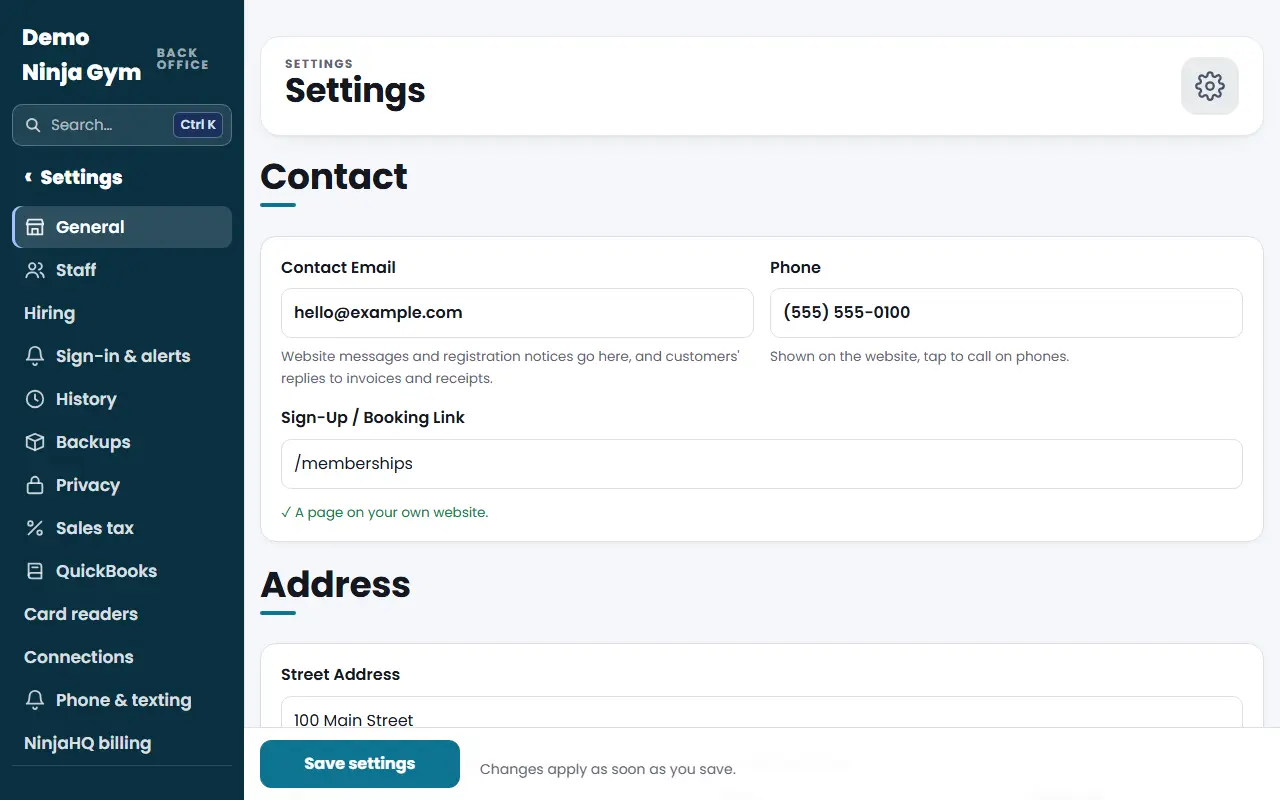
Open Settings > General, edit contact details, address, hours, headline, social links, color and time zone, then press Save settings.
General settings hold the basics that appear all over your website: how families reach you, where you are, when you are open and how your home page speaks.
Before you begin
- You must be an owner.
Steps
- Open Settings (Settings > General).
- Contact. Fill in Contact Email (required) and Phone. The phone number shows on your site and can be tapped to call on a phone. Sign-Up / Booking Link is where the Book a class and Sign up buttons go. It can be a page of your own site, such as
/memberships, or another booking site. Press the open button beside it to check where it goes. - Address. Start typing the street address and pick a suggestion, then check City, State and ZIP.
- Hours. Type the hours for each day, for example
11 AM – 8 PM, orClosed. - Words. Edit the Tagline, Headline, the line Under the Headline and the Description for Search Engines and Social Previews (about 150 characters). If your home page is edited in Page Builder, a note says so and points you there.
- Social. Paste a full link or just a handle such as
@yourgymfor Instagram, Facebook, YouTube and TikTok. The small open button checks that the link goes to the right page. - Look. Pick your Accent Color with the color picker or type a hex code such as
#0348f3. - Time zone & dates. Choose your Time Zone and Date Format. Times on the roster, in exports and in emails use the zone you choose.
- Press Save settings.
Further down the page you also find Payments (Stripe), the Menu editor (see How do I edit my website's menu?) and links to History, Backups and the Platform agreement.
What you'll see
A message confirms the save and visitors see the change within about a minute. Every save is recorded in History.
Troubleshooting
It will not save. Contact Email is required. Check it is a valid address.
There is a Launched box at the bottom. It is labeled "Launched: allow search engines to index the site". It is for going live. Going live requires an owner to have accepted the Platform Agreement. Normally you go live from Getting started instead, so NinjaHQ can connect your domain. See How do I go live on my own domain?.
My home page words did not change. If your home page is built in Page Builder, edit the words there.
Questions
Can a manager change settings?
No. Settings is for owners.
Where do the Contact Email messages go?
Website messages and registration notices go to the Contact Email, and customers' replies to invoices and receipts come back to it too.
I made a mistake. Can I go back?
Yes. Owners can restore an earlier version in History. See How do I see and undo changes in History.