How is the back office organized?
The back office is your gym's control room at /ninjahq-admin. The menu on the left groups every screen by job, and the Dashboard shows what needs you today.
The back office is where you run the gym: customers, classes, payments, emails and your website. This article shows how it is laid out so you can find things quickly.
Before you begin
- Sign in at your gym's web address followed by
/ninjahq. Steps are in How do I sign in to the back office?. - Everyone on your team sees the menu that fits their role.
Steps
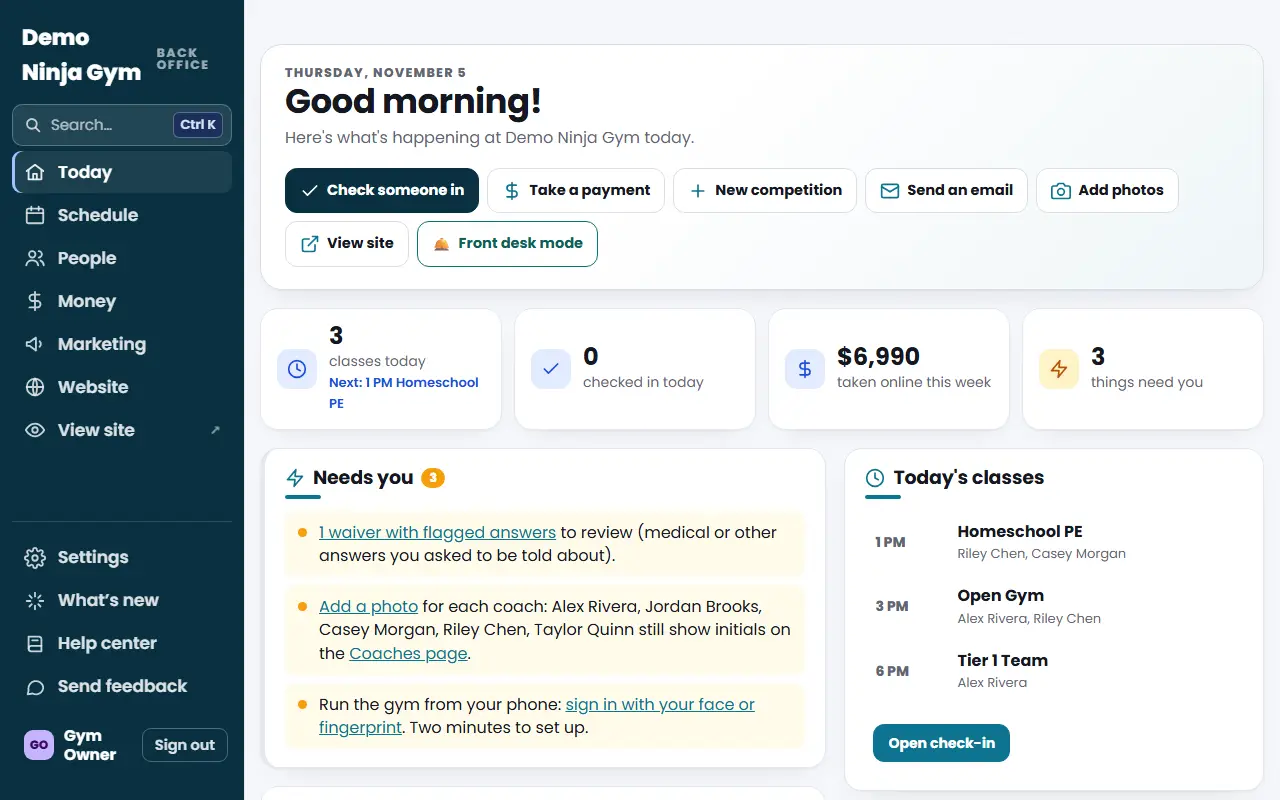
- Open the Dashboard. It is the Home entry at the top of the menu. It opens with a welcome band and quick buttons: Check someone in, New competition, Send an email, Add photos and View site. Owners also see a Front desk mode button there.
- Read the Needs you card. It lists the things waiting for a decision, such as privacy requests. When it is empty it tells you everything is clear.
- Look at the number tiles. They compare the last 30 days with the 30 days before: money taken, registrations, active members, check-ins and visitors, and waivers.
- Scroll down for the next competition, today's classes, upcoming competitions, recent activity and a short list of facts about your website.
- Use the menu on the left to go anywhere else. On a phone, the menu opens as a sheet with every area open.
What the menu areas hold
- Home: the Dashboard.
- Launch: Getting started, Questions and Go live. It shows only until your site is live. See The Getting started checklist.
- Front desk: Time clock, Timesheets, Hours report, Check-in, Waivers, Class packs, Comps, Take a payment and Attendance.
- Customers: Contacts, Payments, Messages, Email fixes, Invoices, Cards to update and Import.
- Programs: Schedule, Bookings, Students and families, Classes & enrollment, Calendar, Competitions, Special events, Parties, Memberships and Refunds.
- Shop: Products, Orders, Vendors, Discount codes and Gift cards.
- Marketing: Emails, Email templates, School partners, Homeschool groups, Reviews, Google Business Profile, Local search and Community.
- Analytics: Insights, Growth, Search vs competitors and Website traffic.
- Website: Coaches, Photos, Pages, Articles, Holiday decorations, Teams, Redirects, and after launch Check-ups and Questions. It also holds AI assistant when NinjaHQ has offered it to your gym.
- Settings (at the bottom): General, Staff, Hiring, Sign-in & alerts, History, Backups, Privacy, Sales tax, QuickBooks, Card readers, Connections, Phone & texting and NinjaHQ billing.
- What's new and Send feedback sit below Settings. See What's new and How do I send feedback?.
Some entries only appear when a feature is turned on for your gym, for example the Social inbox and Page Builder.
What you'll see
An area opens to show its pages only while you are in it. The page you are on is highlighted. Buttons that take a moment show a spinner and "Working…" so you do not need to press them twice.
Troubleshooting
A menu item I expect is missing. Your role may not include it, or the feature may not be turned on for your gym. Ask an owner to check your role under Settings > Staff.
I see "locked" or get sent back to the Dashboard. Managers cannot open owner-only pages, and a page you cannot open sends you back to the Dashboard. Ask an owner to do that task.
Questions
Why do I see fewer menu items than another person on my team?
What you see depends on your role. Owners see everything. Managers do not see owner-only areas such as Staff, Billing, Settings and Backups. Front desk staff work in front desk mode, with a short menu of check-in, payments, class packs, waivers and the time clock. Website helpers get a short menu built around their questions and coach profile.
Where do I go to change something on my public website?
Look under the Website area of the menu for Coaches, Photos, Pages, Articles and more. Gym-wide basics such as address, hours and phone live under Settings > General.