How do I invite guests to my child's party and see who's coming?
Share your party's invitation link by text, email or a group chat. Parents say yes and sign the waiver in one step; your party page shows who's coming.
After you book, your party gets its own invitation link and its own page, where you watch the guest list fill up.
Steps
Open your party page
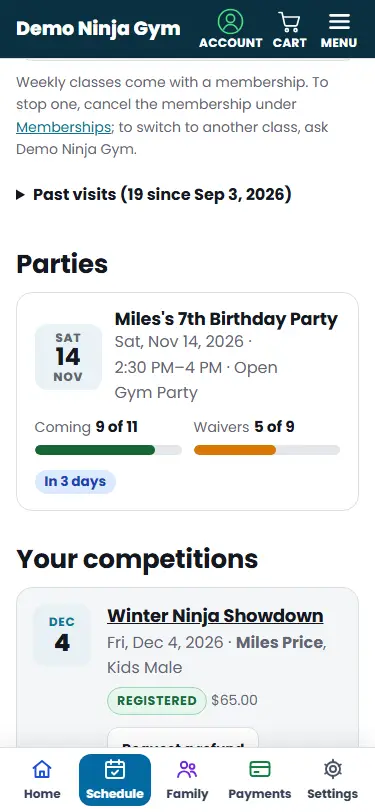
- Sign in to My account and open Schedule. Your party is under Parties, with how many are coming and how many waivers are signed.
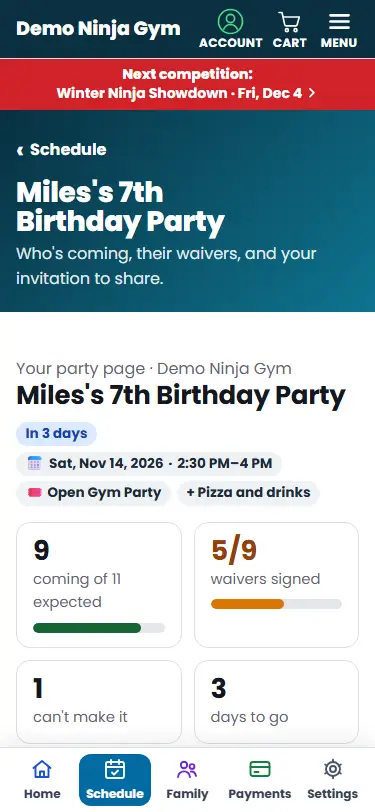
- Press your party. The same page is linked in your booking email too.
Send the invitation
- Under Share your invitation, press Copy, Text It, Email It or WhatsApp (or Share… on a phone).
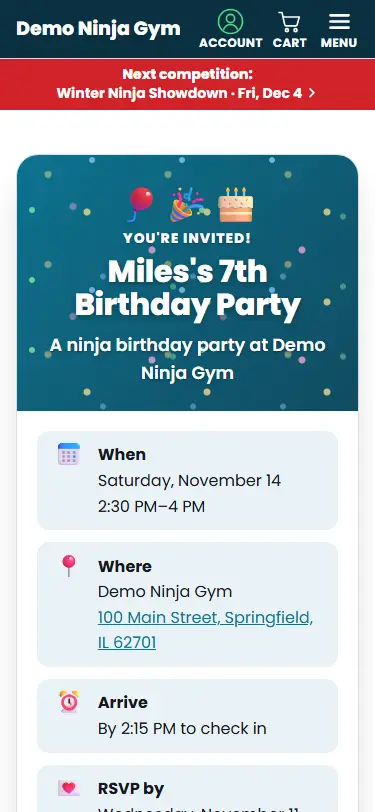
- Send it to the families you're inviting. The message already has the date, time and link.
Make it yours
- Under Make it yours, tap a theme. The preview at the top shows it with your child's name, in the theme's own color.
- Want another color? Tap one under Color, for example Pink or Blue. Every color keeps the invitation easy to read.
- Press Save the Look. The invitation, the RSVP page, the paper invitations and the party emails all change to match. Press Back to the Usual Look to go back to the gym's colors.
- Want a photo of the birthday child on it? Under A photo of your child, press Choose a Photo, pick one and press Add the Photo. It shows in a big circle at the top. Only people with your link see it, and it's deleted 30 days after the party.
Race the Clock and Selected to Compete are made for obstacle course parties: a framed page that opens with "You're invited to race the clock" or "You've been selected to compete at", with your child's name on a ribbon or under a Ninja Party shield. They print well as paper invitations too.
Seasonal themes, like Winter Wonderland or Spooky Fun, show up first in their season. Your guests also see a countdown (12 days to go!) and a quick burst of confetti when they open the invitation.
Food, extras and paying
- Under Food and extras, open Change food and extras to add or change pizza, drinks or goodie bags until a few days before the party. Your total and balance update straight away.
- Pay the Balance Now pays what's left. You can add a tip for the party team (No tip, 15%, 18%, 20% or Custom); it's always optional.
- After the party, Thank the party team lets you leave a tip for the coaches.
Watch who's coming
- Each parent who answers appears on your guest list, with a waiver check for each child. We email you as answers arrive. Under Email Me About RSVPs you can choose one email a day, or none.
- Children who still need a waiver show Needed. Press Remind Families to Sign to send them a reminder, and we remind them automatically 2 days before.
- Your final headcount is due a few days before the party: we email you a reminder with the numbers.
Questions
When is the rest of the party paid?
Your party page shows the balance and when it's charged to your card. We email you 3 days before. To pay sooner or with another card, press Pay the Balance Now on your party page.
Do I have to type in my guests' email addresses?
No. You send the link yourself, from your phone or email, to whoever you like. The gym only emails parents who answer.
What do I see about my guests?
Each child's name, whether their waiver is signed and any allergies their parent shared (when the gym asks about allergies). Parents' email addresses and phone numbers stay with the gym.
Can I change the number of kids or add notes for the coach?
Yes. Under Party details, change the number of children you're expecting, the message on your invitation and notes like cake time or theme. The gym sees your changes.
Can I change the color or theme of my invitation?
Yes. Under Make it yours on your party page, pick a theme (like Unicorn Sparkle, Dino, Space, Sports Star, Race the Clock or Selected to Compete) and a color (pink, purple, red, orange, green, teal, blue, navy or the gym's own). The preview changes as you tap; press Save the Look. Every family sees it on the invitation and the RSVP page, and it's on the party emails too. Back to the Usual Look undoes it.
Can I put a photo of my child on the invitation?
Yes, one photo. Under Make it yours, press Choose a Photo, pick it and press Add the Photo. It shows in a circle at the top of the invitation. Only people with your invitation link see it, it's never in emails, and it's deleted 30 days after the party. Remove the Photo takes it off any time.
Can I order pizza from the gym?
If your gym offers it, your party page has a Pizza card. It suggests how many pizzas from the children coming (plus the birthday child), with the numbers filled in, so you can press Order the Pizza or change them first. Add toppings in the note. It's added to your party balance, and you can change it until the date it shows. We also email you the suggestion and tips a few days before that date.
Can I print invitations?
Yes. Press Print Paper Invitations for four invitations to a page, each with a QR code parents scan to answer.