How do I add a video to a page?
Add a Video section, then upload a video from your phone or computer or paste a YouTube link. Nothing plays or loads until someone presses play.
A Video section shows a video with your own poster picture and title. The video can be one you upload, played from your own website, or a YouTube video.
Before you begin
- Your own video: have it on your phone or computer (an MP4 or MOV, up to 2 minutes). Use Chrome, Edge or Safari.
- A YouTube video: have its link from YouTube's Share button.
Steps
- In Pages, press Edit on the page.
- Add a section and choose Video.
- Under The Video, choose Upload a Video or YouTube Link.
- To upload: press Choose a Video, then Upload a New One. Choose the video, give it a title, say whether there is talking in it (and add the caption file if there is), and press Add and Use It. Wait while it is made smaller and sent; a bar shows how far along it is. Videos you added before are under Your Videos: press Use This Video.
- For YouTube: paste the YouTube Link.
- Write the Video Title (the play button says it; people using screen readers hear it). An uploaded video gets a poster picture from the video itself; you can pick a different Poster Picture.
- Choose the layout: wide, or beside text on either side. Then publish the page.
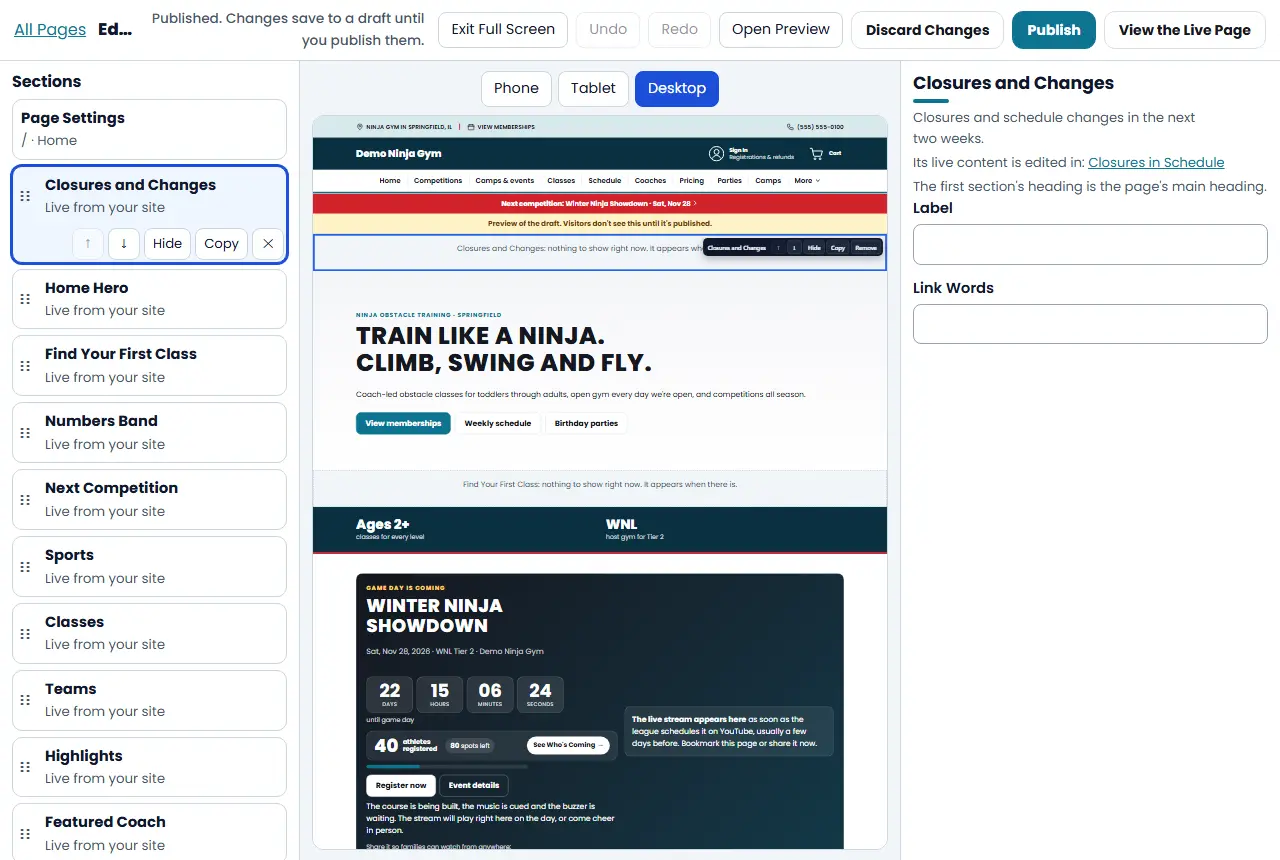
What you'll see
Visitors see the poster and a Play video button. Pressing it starts the video on the page, on phones and computers. Uploaded videos show their captions; visitors can turn them off in the player. A video filmed upright on a phone shows in a tall box.
Troubleshooting
"This browser can't prepare videos." Use Chrome, Edge or Safari, on a computer or a phone.
"Your website keeps up to 10 videos." In Choose a Video > Your Videos, delete one you no longer use. A video that a page still uses can't be deleted: choose another video in that section first.
The section is empty in the preview. No video is chosen yet, or the YouTube link isn't one the section understands. Paste the link from YouTube's Share button.
Questions
Can I upload my own video file?
Yes. In a Video section choose Upload a Video, then Choose a Video and Upload a New One. Your website keeps up to 10 videos, each up to 2 minutes. It plays from your own website, not YouTube.
My video is longer than 2 minutes. What do I do?
Trim it first. On an iPhone or Android phone, open it in Photos (or Gallery), tap Edit and drag the ends. Or put the long version on YouTube and use YouTube Link.
Why does it ask whether there is talking in the video?
Visitors who are deaf or hard of hearing need the words, and the law on accessible websites (ADA) expects captions. If there is no talking (music only, or silent), say so. If the words are already shown on the video, say that. Otherwise add a caption file (.srt or .vtt); CapCut, YouTube Studio and Descript can make one.
Does anyone track who watches my videos?
No. An uploaded video plays from your own website and nothing records who watched it. A YouTube video loads nothing from YouTube until a visitor presses play; then YouTube's privacy-enhanced player (youtube-nocookie.com) plays it.
Why is the upload slow?
The video is made smaller on your phone or computer first (720p), so it starts quickly for visitors on phones. A 2-minute video takes a minute or two. Keep the page open until it says it's done.