How do I change a coach's headshot, card background or order?
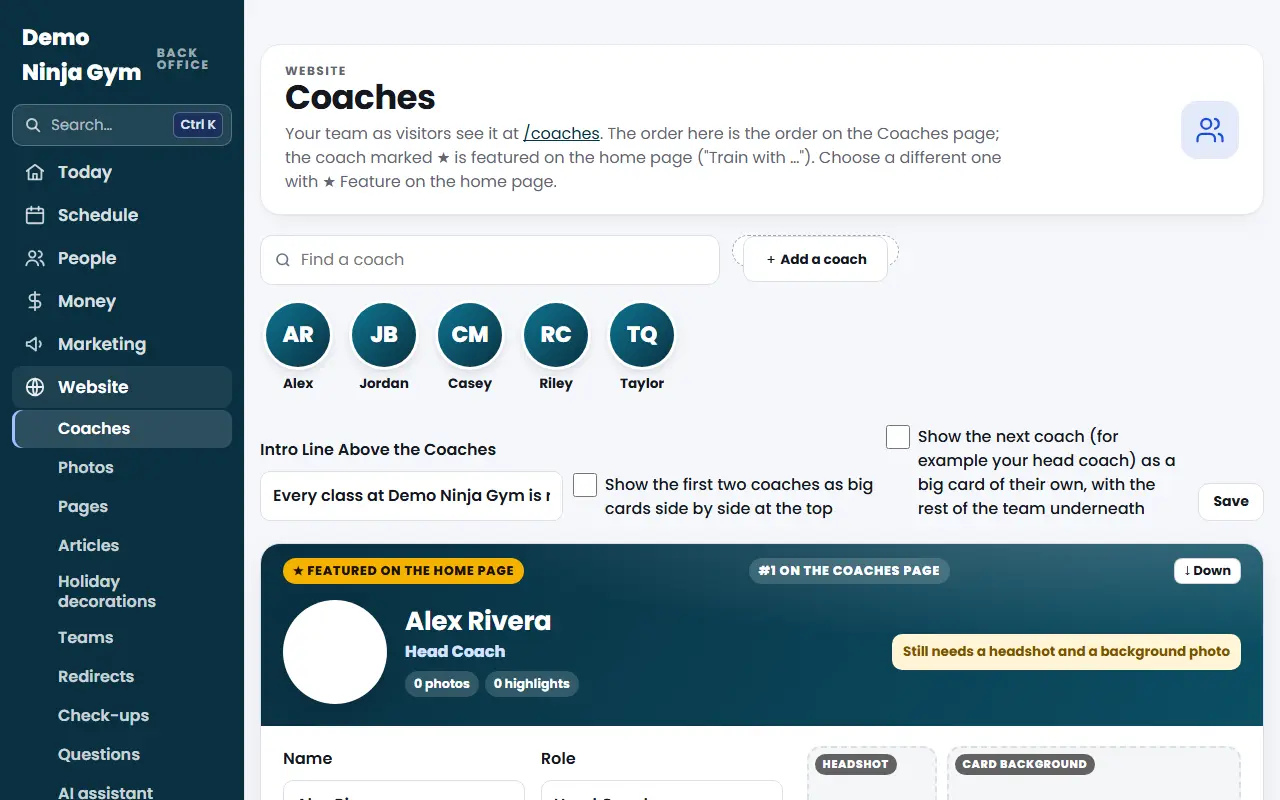
In Website > Coaches, drop a photo onto Headshot or Card background, drag action photos into order, and use Up, Down or Top to reorder coaches.
Each coach card has three kinds of pictures: a round Headshot, a Card background (the wide picture behind the card), and In action photos. You can set all three without leaving the card.
Before you begin
- Only add photos of people who agreed to be on the website (a parent's OK for anyone under 18).
- Owners and managers can do this.
Steps
Add photos of a coach
- Open Coaches and find the coach's card.
- Under the photos, choose In action or New headshot, then press + Add photos of the coach, or drop photos on it from your computer.
- Wait for the green status line under the box. Very small pictures are refused rather than enlarged.
Use a photo as the headshot or background
- In the In action grid, point at a photo (on a phone, the buttons are always showing).
- Press ◉ to make it the headshot, or ★ to make it the card background. You can also drag a photo onto the Headshot or Card background box.
- If the coach already has an older headshot upload, open Use an earlier headshot and press ◉ Use.
Put the action photos in order
Drag a photo to a new place. With a keyboard, select a photo and press Alt with an arrow key. The first photos show first on the website.
Take a photo off a coach
Press ✕ on the photo and confirm. It stays on your Photos screen, it just stops showing on that coach.
Change the order of coaches
Each card shows its place, such as "#2 on the Coaches page". Press ↑ Up, ↓ Down or ⤒ Top. To choose which coach appears in "Train with …" on the home page, press ★ Feature on the home page on that coach's card.
What you'll see
Changes save as soon as you press a button and show on your Coaches page and home page right away.
Troubleshooting
The photo I want isn't in the grid. The grid shows photos tagged with this coach. Add the photo on this card, or open Photos, press Edit on the photo and tick the coach under Coaches in This Photo.
The headshot is too small. Upload a picture at least 400 pixels on its shorter side.
Questions
Will my headshot be cropped so the face is cut off?
Headshots are shown as a circle. NinjaHQ centers the face when you upload a headshot, and when you pick a headshot from an action photo it centers on the face too.
Which coach is shown on the home page?
The one marked with a star as featured on the home page. Press Feature on the home page on another coach's card to change it.