How do I sell a product at the front desk register?
Tick Front desk on the product under Where it's sold, set what it counts as and its sales tax type, and it becomes a tile on Take a payment.
The register on Take a payment shows your front desk products as tiles. You manage them in the same Products list as your website shop.
Before you begin
- Owners add and edit products.
Steps
- Open Products. To start a desk-only product, press + Add product, or use + Add a front desk product on the register's setup area.
- Fill in the title, price and category as in adding a product.
- Under Where it's sold, tick Front desk.
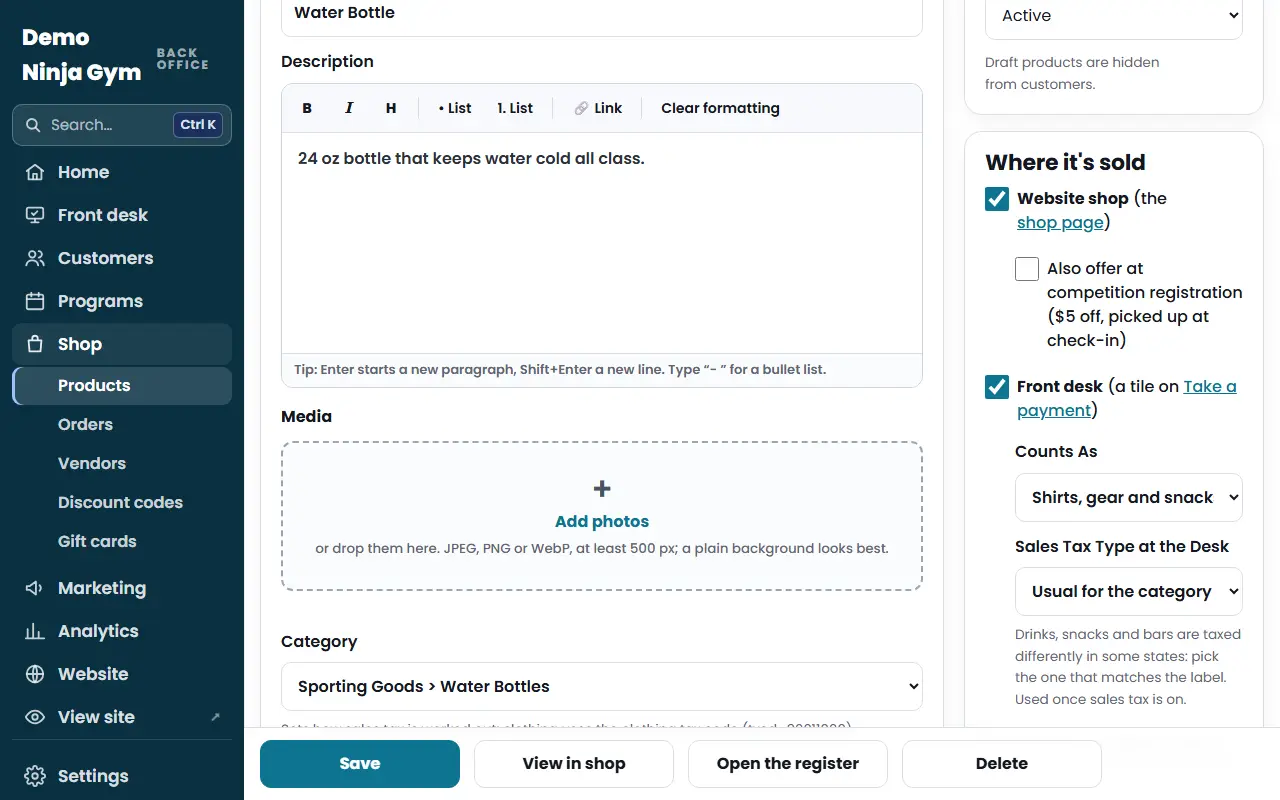
- Choose Counts As: Shirts, gear and snacks; Competitions (spectator fees); Camps, events and other; or Parties. This decides which income line it is reported under.
- Choose the Sales Tax Type at the Desk, or leave Usual for the category. Drinks, snacks and bars are taxed differently in some states, so pick the one that matches the label.
- Press Save product.
What you'll see
The product appears as a tile on Take a payment. The Products list has a Front desk filter showing only desk products. When something is sold at the register and the product belongs to a vendor, the sale is recorded for the vendor too. See vendors.
Troubleshooting
"Choose the sales tax type at the desk". Products in the food category need a tax type picked. Choose the one that matches the label.
The tile does not show. Check the product's Status is Active and that Front desk is ticked.
A fee or service. These are sold only at the front desk. Choose the fee category and leave Website shop unticked.
Questions
Do sizes come off the shelf count when sold at the desk?
Yes. Sizes with a count come off the shelf count when sold at the register.
Can one product be sold both online and at the desk?
Yes. Tick both Website shop and Front desk.