How do I add a product to my shop?
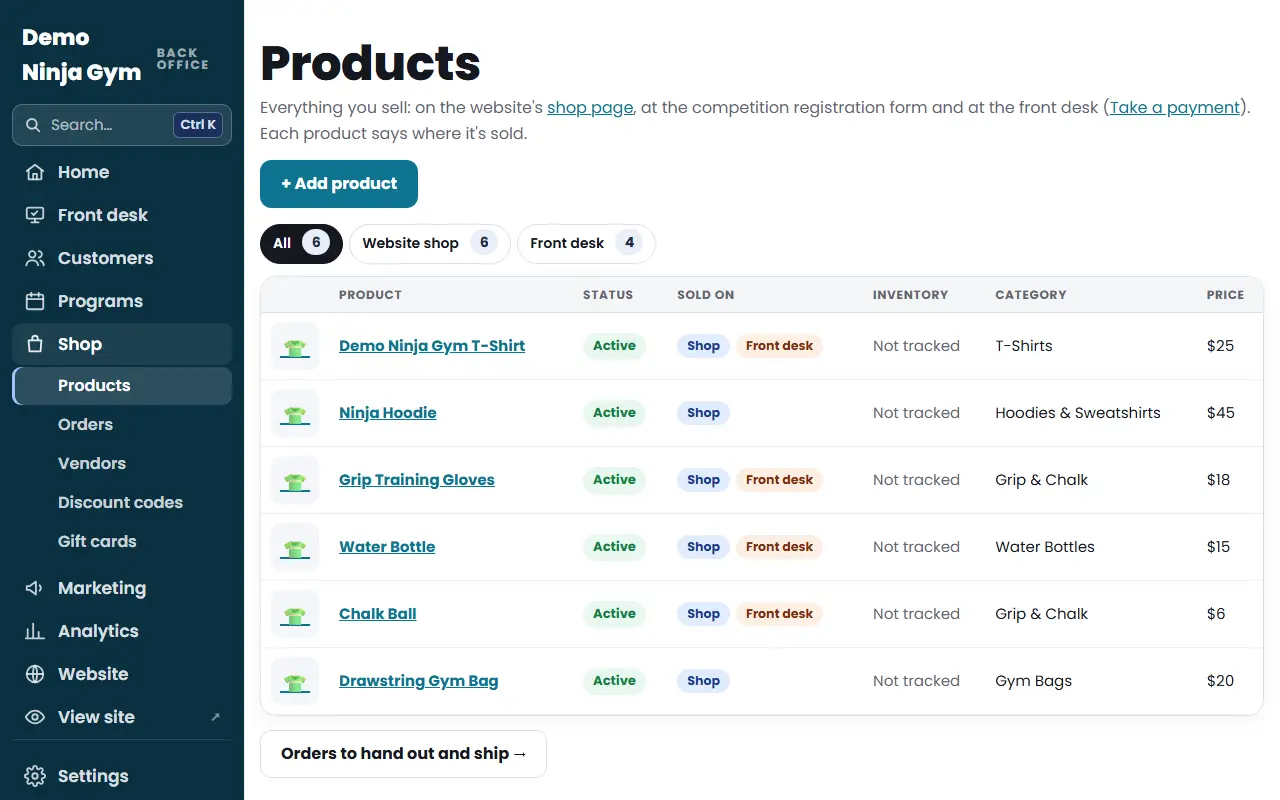
Open Shop > Products, press + Add product, fill in the title, price and category, tick where it is sold, save, then add photos.
Everything you sell lives on one list: the website shop, the competition registration form and the front desk register. You add a product once and say where it is sold.
Before you begin
- Only owners can add or change products. Managers and front desk staff can see orders but not edit products.
- Decide where it will be sold: your website shop, the front desk, or both.
Steps
- Open Products and press + Add product.
- Type the Title (for example "Ninja T-shirt") and a Description.
- Choose a Category. It is required, and it also sets how sales tax is worked out: clothing uses the clothing tax code and everything else is general merchandise.
- Under Pricing, enter the Price. Add a Compare-At Price only if you want the old price shown crossed out for a sale.
- Under Variants, set the option (the name is Size unless you change it) and add its values. See sizes, colors and stock.
- On the right, pick the Status: Active, Draft or Archived.
- Under Where it's sold, tick Website shop, Front desk, or both. Tick Also offer at competition registration if families should be able to add it when they register (this needs Website shop ticked too).
- Under Fulfillment, tick Pick up at your gym, Can be shipped, or both. Shipping works only after you switch it on in Shop settings.
- Press Save product. The page reloads on the new product.
- In the Media area, press the + Add photos tile (or drop files onto it). JPEG, PNG or WebP, at least 500 px; a plain background looks best.
What you'll see
The product appears in the list on the Products page with its status, where it is sold, its stock and its price. Active products on the website shop show on your Shop page, and the Shop link appears in your website menu while at least one product is active. Use View in shop at the bottom of the product to see the public page.
To remove a product for good, press Delete at the bottom of the product page. Past orders keep their details. If you only want to hide it, set the status to Archived instead.
Troubleshooting
"Tick where it's sold" error. An active product must be sold somewhere. Tick Website shop or Front desk, or set the status to Draft.
"Tick at least one way to get it". A website product needs Pick up, Can be shipped, or both.
A fee or service can't go on the website shop. Fees and services (such as a spectator fee) are sold at the front desk only. Untick Website shop or choose a merchandise category.
Offering at registration needs Website shop. Tick Website shop first, then Also offer at competition registration.
Questions
Why can't I add photos right away?
A new product has to be saved once first. After you press Save product the page opens the product and the Add photos tile appears.
How many photos can a product have?
Up to 10. The first one is the main photo, and the star button on any other photo makes it the main one.
How do I stop selling a product without losing it?
Set its Status to Draft or Archived. Draft products are hidden from customers, and past orders keep their details.