How do I set up sizes, colors, stock and paid extras on a product?
In the product's Variants card add sizes, optionally a second option like Color, then set each variant's price and Available count. 0 shows as sold out.
A variant is one thing a customer can buy, such as "Blue / Large". Each variant can have its own price, SKU and stock count.
Before you begin
- Owners edit products. Open the product from Products. A new product is covered in adding a product.
Steps
- In the Variants card, check the Option Name (it starts as Size).
- Under Values, type a value such as XL and press Enter. Each one becomes a chip. The ✕ on a chip removes it.
- For a second option, fill in Second Option (for example Color) and add its values the same way. The product gets a variant for every pair, such as Blue / Large and Teal / Large.
- In the variant table, fill in the optional SKU, Price and Available for each row. An empty Price uses the product's price.
- To fill every row at once, use Same Price for All and Same Number Available for All, then press Apply to every size.
- After saving, give each photo a color: under a photo, choose the color from its menu (the default is Every color).
- Press Save.
Paid extras
Extras are optional add-ons families tick on the product page, like a name on the back of a shirt.
- In the Paid extras card, type one extra per line in the form
name | price | text: letters, for exampleName on the back | 5 | text: 12. - The part
text: 12adds a box for what to print, up to 12 letters. Leave it off for an extra without text, such asCoach graphic | 10. - Press Save.
What you'll see
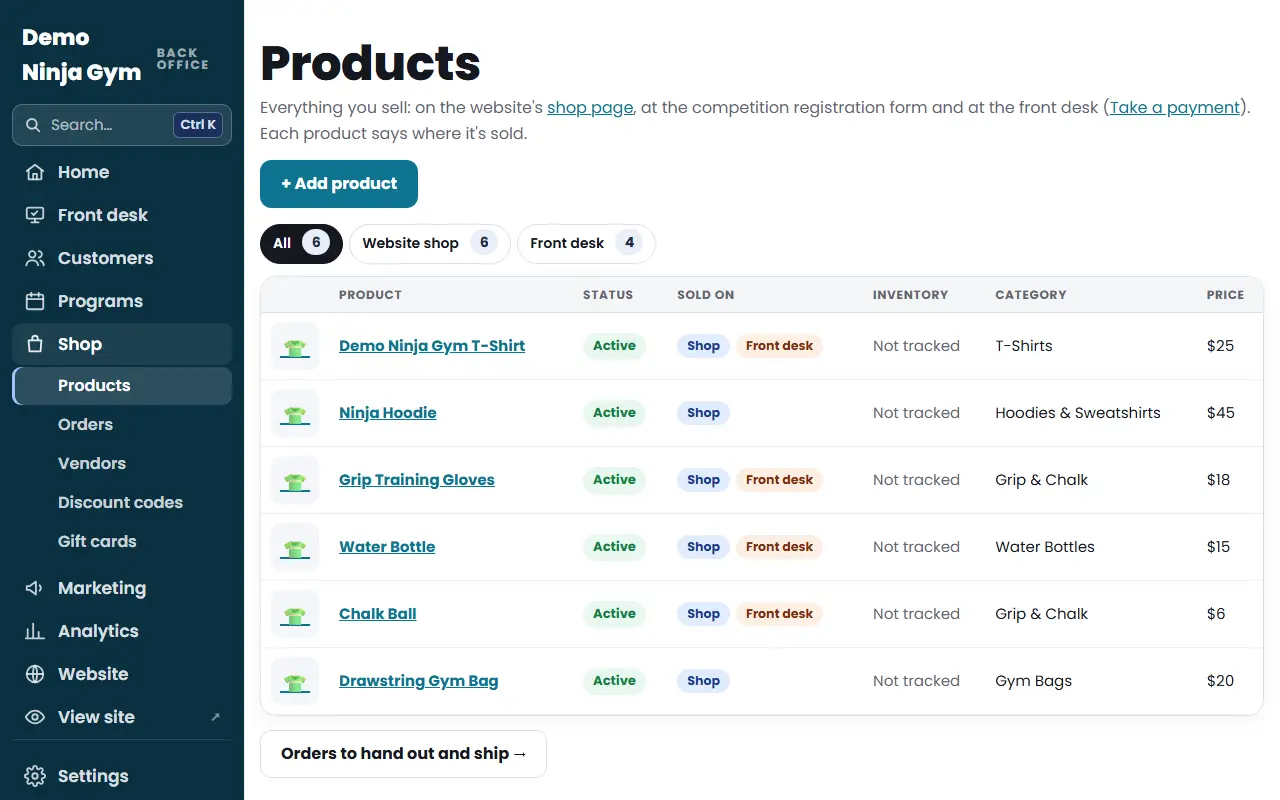
On the Products list, the Inventory column shows how many are in stock and how many variants are sold out, or "Not tracked". On the product page in your shop, customers see sizes as short buttons, a size that is sold out in the chosen color cannot be picked, and choosing a color jumps to that color's photos.
If a product has a size guide, a Size guide card appears with Take the size guide off if you want it removed from the product page.
Troubleshooting
A size shows as sold out and I did not mean it. Its Available box is 0. Clear the box to stop counting stock, or enter the real number.
"That's more than 80 variants." Remove some values so the pairs total 80 or fewer.
Questions
What does an empty Available box mean?
Stock is not counted for that variant, so it can always be bought. Type 0 to show it as sold out.
Can a color have its own photos?
Yes. With a second option such as Color, each photo has a menu where you pick which color it shows. Picking a color in the shop switches to its photos.
Is there a limit on variants?
A product can have up to 80 variants. If you have more size and color pairs than that, use fewer values.