How do I show my Instagram and Facebook posts on my website?
In Marketing > Instagram and Facebook press Connect, sign in with Facebook and pick your Instagram account. Your posts then show on your News page.
Your Instagram posts, reels, stories, photos and videos can appear on your own website by themselves: posts on your News page (/news), every photo and video on Photos and Videos (/news/photos). The photos and videos are stored by your website, so visitors never load anything from Instagram or Facebook.
Before you begin
- You need an Instagram professional account (Business or Creator) linked to your gym's Facebook Page, and a Facebook login that manages that Page.
- Only an owner can connect or disconnect.
Steps
- Open Instagram and Facebook under Marketing.
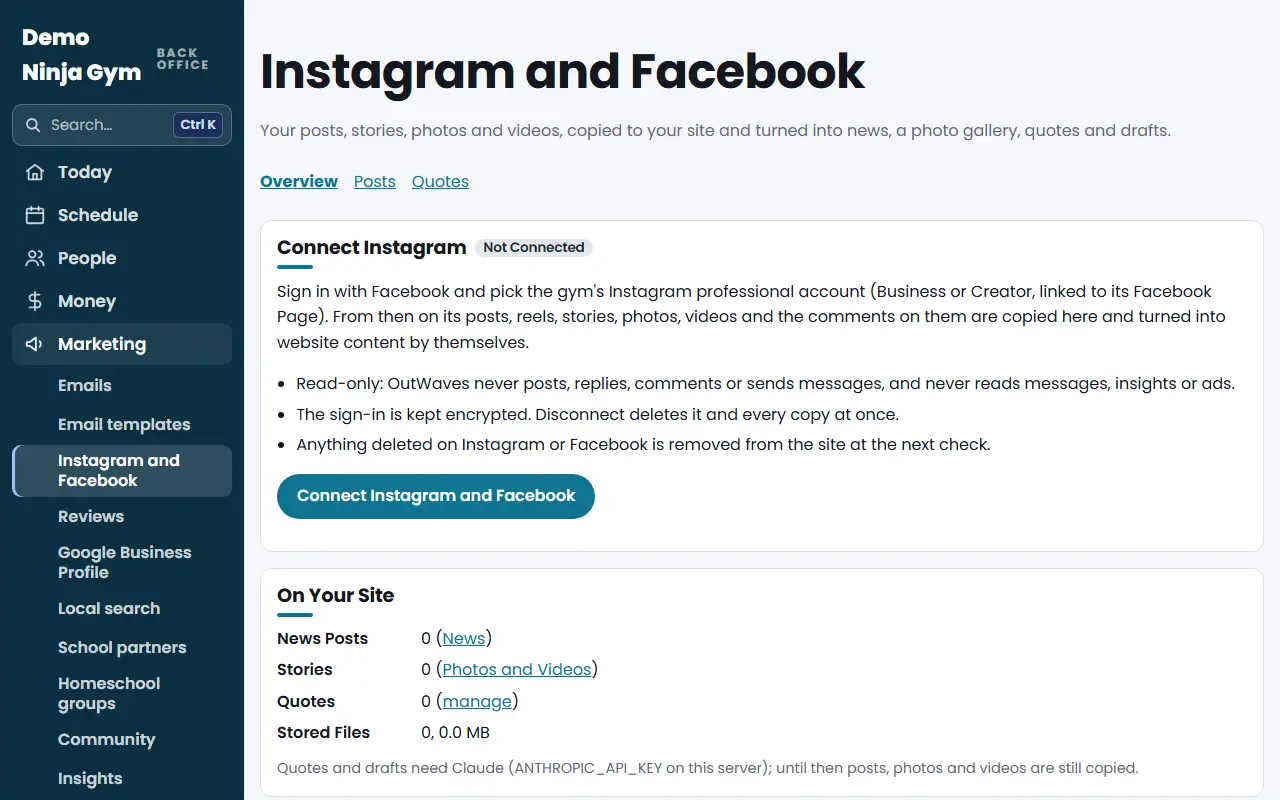
- Press Connect Instagram and Facebook. Facebook's sign-in opens.
- Sign in, then tick your gym's Facebook Page and its Instagram account when Facebook asks, and press Continue or Save.
- You come back to the same screen. It says Connected and copies your newest posts straight away; the rest follow within the hour.
- If your login reaches more than one Instagram account, pick yours under Pick the Instagram Account, choose whether to copy your Facebook Page's posts too, and press Save.
Add News to your menu
Your News page is ready at /news. To add it to your website's menu, open Settings, add a menu item called News that goes to /news, and save.
Hide a post
Open the Posts tab, find the post and press Hide. It stays hidden until you press Show.
What you'll see
The Overview tab shows your account, when posts and stories were last checked, and how many posts, stories and files are on your site. Press Check Now to look for new posts straight away.
Disconnect
Press Disconnect. The sign-in and every copied post, story, photo, video and comment are deleted from your website at once.
Troubleshooting
"No Instagram professional account came with that sign-in." In Facebook's window, make sure you ticked the gym's Page and its Instagram account. Switch the Instagram account to Business or Creator in the Instagram app if it's a personal account.
It says Needs Connecting Again. Facebook stopped accepting the sign-in, for example after a password change. Press Connect Again. Your posts stay on the site for 30 days in the meantime.
Instagram and Facebook isn't in your menu. NinjaHQ turns it on gym by gym. Ask for it through Request a feature.
There is no Connect button. NinjaHQ is still setting up the connection on its side. Ask NinjaHQ through Request a feature.
Questions
Can NinjaHQ post, reply or read our messages?
No. It only reads your own posts, stories and the comments on them. It never posts, replies, comments or sends messages, and never reads messages, insights or ads.
Are people's names shown?
No. Comments are copied without the name, username or picture of who wrote them.
How often does it update?
Posts every hour and stories every 15 minutes. Press Check Now to look straight away.
What if I delete a post on Instagram?
It is removed from your website at the next check.
What kind of Instagram account do I need?
A professional account (Business or Creator) linked to your gym's Facebook Page.
Related articles
- How do I connect Facebook and Instagram to the Social inbox?
- How do I turn my Facebook and Instagram posts into website updates?
- How do I send an email to my customers or my news list?
- Who can I send news emails to, and how do unsubscribes work?
- How do I turn camp, trial, party and waitlist reminders on or off?