What can I put on an extra page, and how do I type each block?
Each block on an extra page has a kind, like Text, Cards, Table or Quotes. You type plain text with a bar (|) between parts; hints show the format.
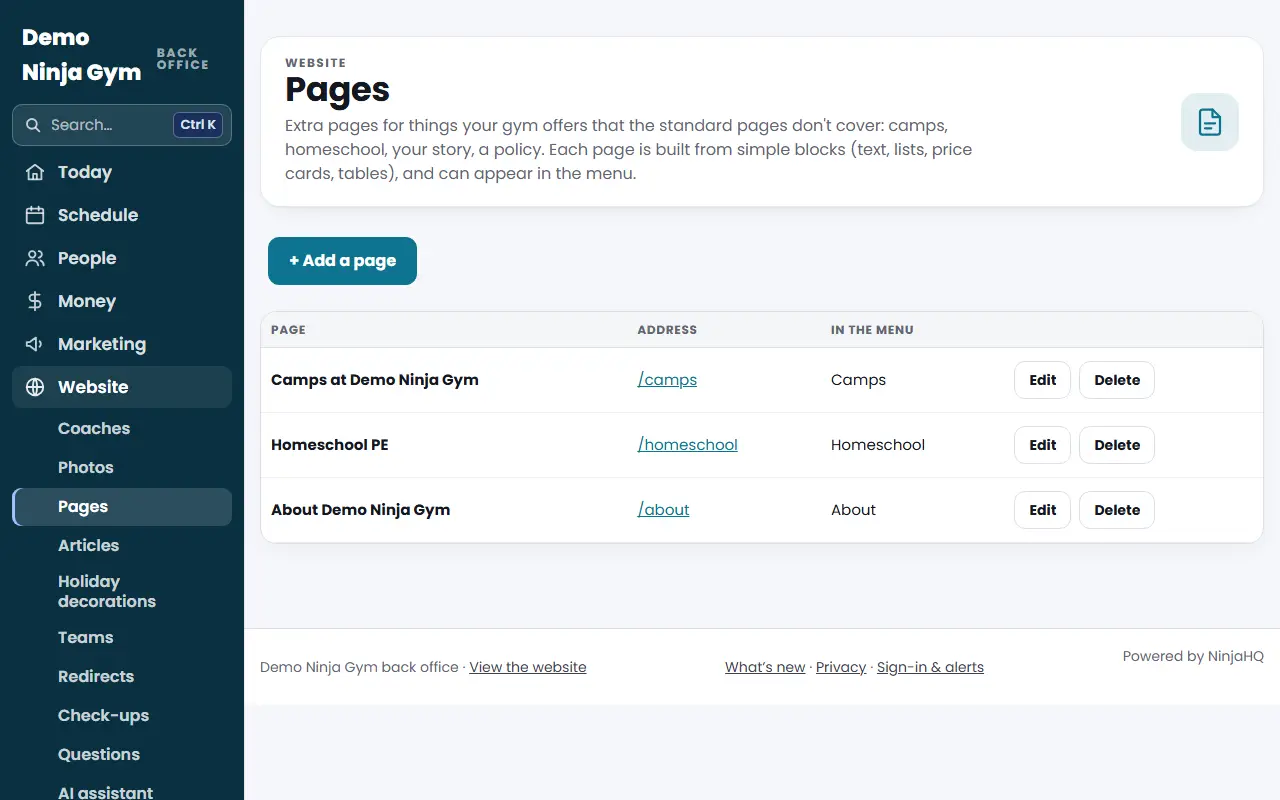
When you edit a page in Pages, every block is a Kind of Block, a Heading (optional) and a Content box. How the Content text is read depends on the kind. A hint under the box shows the pattern.
The kinds
- Text: paragraphs, with an empty line between them.
- List with check marks: one item per line.
- Cards (prices, options): one card per group, with an empty line between cards. First line:
Title | price | per. Price and per are optional. Lines starting with a dash become check marks. Other lines are the card's text. A lineBadge: Best valueadds a badge. - Table: one row per line, with
|between columns. The first line is the header row. Up to four columns. A line startingNote:adds a note below. - People: one person per line,
Name | a line about them. - Notice box: a short message in a highlighted box.
- Quotes: one quote per group with an empty line between. A last line starting with a dash says who, such as a role like Parent or Coach. Use a name only with their OK.
- Timeline (your story step by step): one step per group. First line
when | title, then the step's text. A lineLink: Our results | /resultsadds a link. - Big numbers: up to four lines,
number | what it counts. - Text beside a picture: paragraphs, with lines starting with a dash as check marks. The picture stays as it is.
- People with photos:
Name | a line about them. A coach's name shows their headshot and links to their card. - Photo grid and Videos: the pictures or videos stay as they are, the text you type appears above them.
- Class times (from the schedule): the first line is the class name exactly as on the Classes page. Its times come from your weekly schedule, so they stay up to date.
- Prices (from the Pricing page): one price name per line, as on the Pricing page.
- Locations that offer it (brand sites): one word such as party or camp. Only for gyms with several locations.
Steps
- Open the page in Pages and find the block.
- Choose the Kind of Block. The hint and sample text change to match.
- Type the content in that pattern.
- Press Save page.
Troubleshooting
A block disappeared after saving. A block with nothing usable in it is dropped. A table needs at least two lines (a header and one row).
The numbers or times are out of date. Use Class times and Prices blocks. They read from your schedule and Pricing page, so they follow when you change those.
Questions
How do I make a price card?
Choose Cards (prices, options). Type the title, price and "per" on the first line separated by |, such as "Full day | $95 | / day". Lines starting with a dash become check marks.
Can I change a picture inside a block?
Pictures and buttons that were set up for a block stay as they are when you save. Change them in the Page Builder if the page was moved there.