How do I cancel one class on a single date?
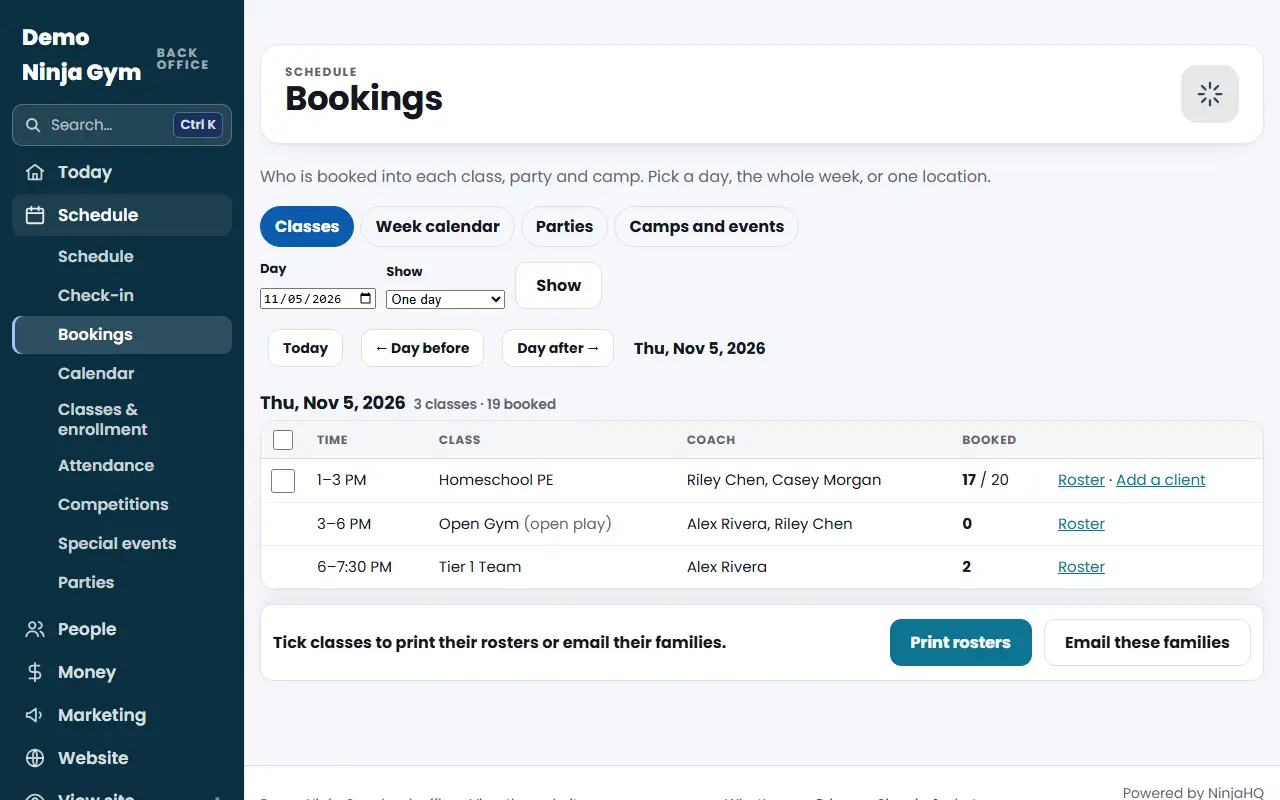
Open Programs > Bookings, press Roster on the class, then Cancel this class on that date. It shows as Cancelled; nobody is emailed, so tell the families.
Use this when one class cannot run on one day, such as a sick coach or a booked-out gym. The rest of the weekly schedule stays as it is.
Before you begin
- Only owners and managers see the cancel button. Front desk staff can see the roster but not cancel.
- The class must be one of your bookable classes (listed under Programs > Classes & enrollment). A plain schedule entry has no roster to cancel from; use a closure or a one-day change for those (see the related article).
Steps
- Open Bookings and stay on the Classes tab.
- Pick the Day and press Show.
- Find the class and press Roster.
- At the bottom of the roster press Cancel this class on the date.
- Read the box that opens and press Cancel the class.
What you'll see
- The class shows a red Cancelled label on Bookings, and its name is struck through.
- It is no longer offered for free trials or single days on that date.
- Nobody is emailed. Go back to Bookings, tick the class and press Email these families, or call the booked families from the roster.
To undo, open the roster again and press Put this class back on.
Troubleshooting
I do not see a cancel button. Your role may be front desk staff, or the roster says the class was not found because it is only a schedule entry. Closures and one-day changes are on the Schedule page.
I cancelled the wrong date. Open the roster for that date and press Put this class back on, then cancel the right date.
Questions
Are the booked families told automatically?
No. Cancelling a class does not send any email. Use Email these families on the Bookings page, or call the families booked.
Can I undo it?
Yes. Open the same roster and press Put this class back on.
Does it cancel the class every week?
No. It cancels only that one date. The weekly schedule is not changed.