How do I add a class to the weekly schedule?
On Programs > Schedule press + Add to the day, fill in times, name and type, then Save schedule. It shows on your website's schedule right away.
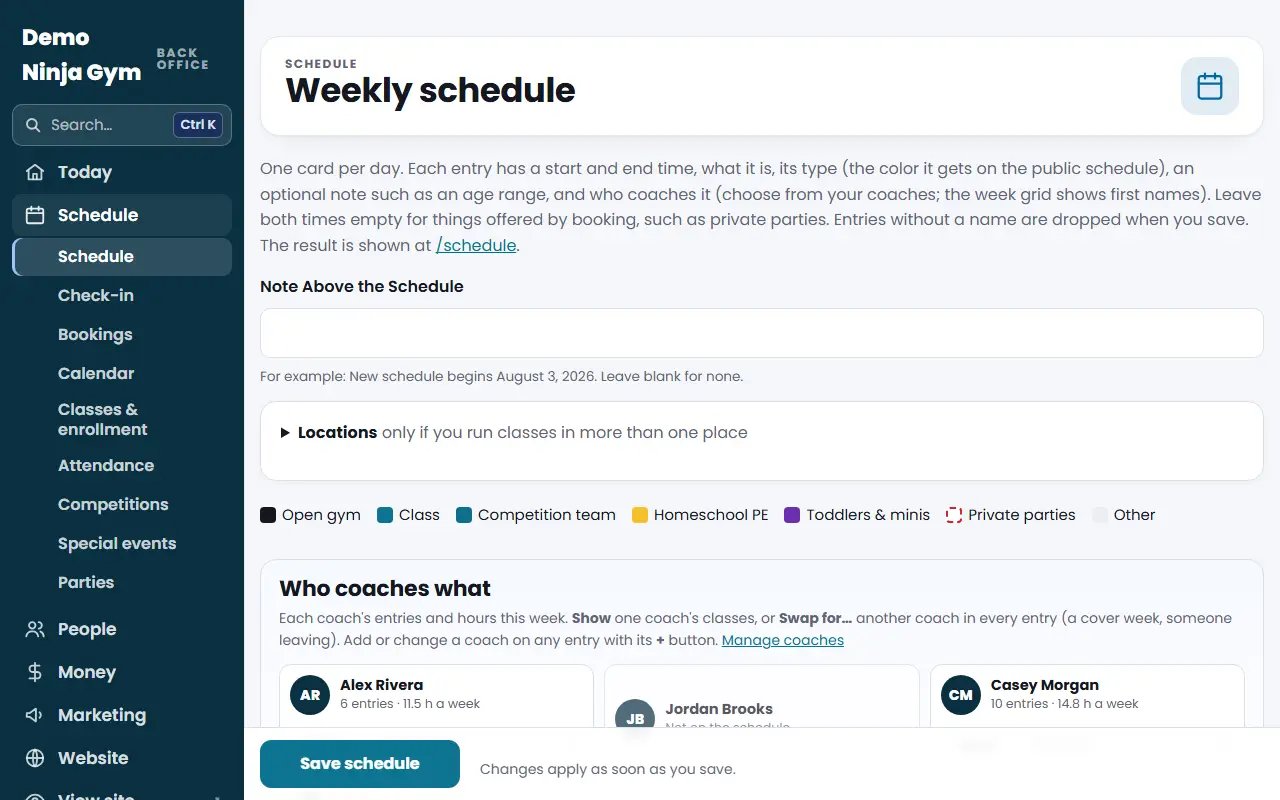
The weekly schedule is the grid your visitors see at the Weekly schedule page of your website (the /schedule page). You build it one day at a time, and each class, open gym or party time is one entry.
Before you begin
- Owners and managers can edit the schedule.
- Add your coaches first under Website > Coaches if you want to pick them by name on each entry.
Steps
- Open Schedule. You see one card for each day, Sunday through Saturday.
- On the day you want, press + Add to Monday (the button names the day).
- Fill in the new row:
- Start and End time.
- What, for example "Open Gym" or "Ninja Level 2".
- Type: Open gym, Class, Competition team, Homeschool PE, Toddlers & minis, Private parties or Other. The type sets the color on the public schedule.
- Location, only if you run classes in more than one place (see below).
- Note, a short line such as "Ages 4-6".
- Coach(es), one or more names.
- To repeat a day, use Copy this day to... on the day's card and choose the other day.
- Press Save schedule at the bottom.
To remove an entry, press the ✕ at the end of its row and save. Entries with no name are dropped when you save.
Things offered by booking only
Leave both times empty for things you offer by booking, such as private parties. They show under the day as "by booking."
Describe what each entry is
Below the days, What each entry is has a text box for every entry name. Whatever you type shows when a visitor taps or hovers that entry. If you leave a box blank, NinjaHQ uses the matching text from your Classes page, or a general line for the type.
More than one location
Open the Locations box at the top, type one location per line, and save. Every entry now gets a Location menu (save once after adding locations, then pick one for each entry). Visitors can show one location at a time on your public schedule. Remove a line to take that location off its entries.
Who coaches what
The Who coaches what panel shows each coach's entries and hours for the week. Use Show to see one coach's classes, or Swap for... to replace a coach in every entry (a cover week, for example).
What you'll see
Your public schedule updates as soon as you save. The section below the days, Closures and one-day changes, also lets you add a line under the schedule or switch to one column per day. See the article on closing the gym for a day.
Troubleshooting
My new class does not appear on the website. Check that you pressed Save schedule and that the entry has a name.
The Location menu is missing. It appears after you type locations in the Locations box and save the page once.
Questions
Does adding a class here let families book it online?
No. The weekly schedule is what visitors see on your website. Online booking, trials and waitlists work for the classes listed under Programs > Classes & enrollment, which come from your booking system or are linked to the schedule. See the article on setting up online class booking.
Can I copy Monday's classes to Tuesday?
Yes. Each day has a Copy this day to... menu. Pick the day and the entries are copied there.
What does the Type change?
The Type sets the color the entry gets on your public schedule. The choices are Open gym, Class, Competition team, Homeschool PE, Toddlers & minis, Private parties and Other.