How do I let families sign the waiver on a front desk tablet?
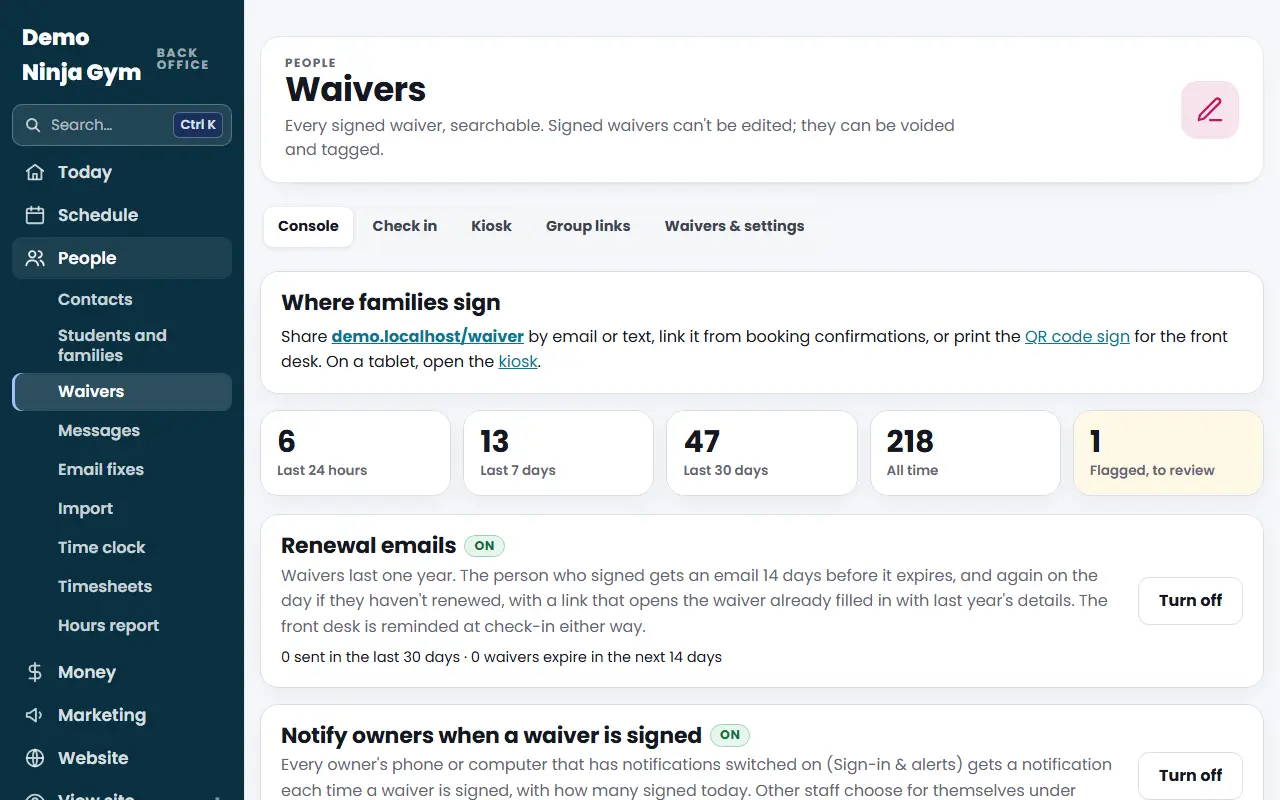
Open Front desk > Waivers > Kiosk on the tablet, press Open the kiosk and hand it over. Families press Start, Next and Finish and sign; it is filed at once.
The kiosk turns a tablet at the counter into a signing station. Families see only the waiver, with your gym's name at the top. The guided signing is built to be as easy as possible.
Before you begin
- A waiver must be published (live). Owners do that under Waivers & settings.
- Sign in to the back office on the tablet once. It stays signed in for 30 days.
- Optional: add the page to the tablet's home screen and use guided access (iPad) or screen pinning (Android) so it stays on this page.
Steps
- On the tablet open Waivers and choose the Kiosk tab. In front desk mode, press the Sign a waiver tile or menu item instead.
- Press Open the kiosk next to the waiver you want. It also tells you whether the kiosk takes a photo of the signer; that is a setting on the waiver.
- Hand the tablet to the family. They tap to start, then:
- choose who is taking part: Adult, or Adult and minor(s) (an adult always signs with the children),
- fill in names, ages, email, phone and the emergency contact, and answer your questions,
- press Start, then Next to jump to each item still to do (a counter shows how many are "to go"),
- tap the box in each section to initial it (the first tap asks them to adopt their initials once, later taps stamp them),
- type their name and tap it to adopt it as the signature, or choose Draw my signature instead,
- press Finish and sign.
- The kiosk thanks them ("Please hand the tablet back") and starts fresh for the next family.
- To leave the kiosk press Exit kiosk at the top.
What you'll see
- The waiver appears right away under Waivers (source "kiosk") and at check-in.
- The signer is emailed their copy. A signed waiver is valid for one year.
- If your waiver has translations, families can switch the language.
Troubleshooting
The Open the kiosk button is missing. No waiver is live. The page says Publish a waiver first (Waivers & settings).
The signer did not get their copy. Open the waiver in Waivers and press Send the copy again.
Groups, parties or field trips. Use a group link instead; see the Group links tab. It gives a link and QR code for the group and prints a day check-in list.
Questions
What if the internet drops?
Signed waivers wait on the tablet and upload by themselves when the connection is back.
What if a family walks away halfway?
After 3 idle minutes the kiosk clears itself so the next family never sees someone else's details.
Does the signer get a copy?
Yes. A copy of the signed waiver is emailed to them.