How do I save a template for emails I write myself?
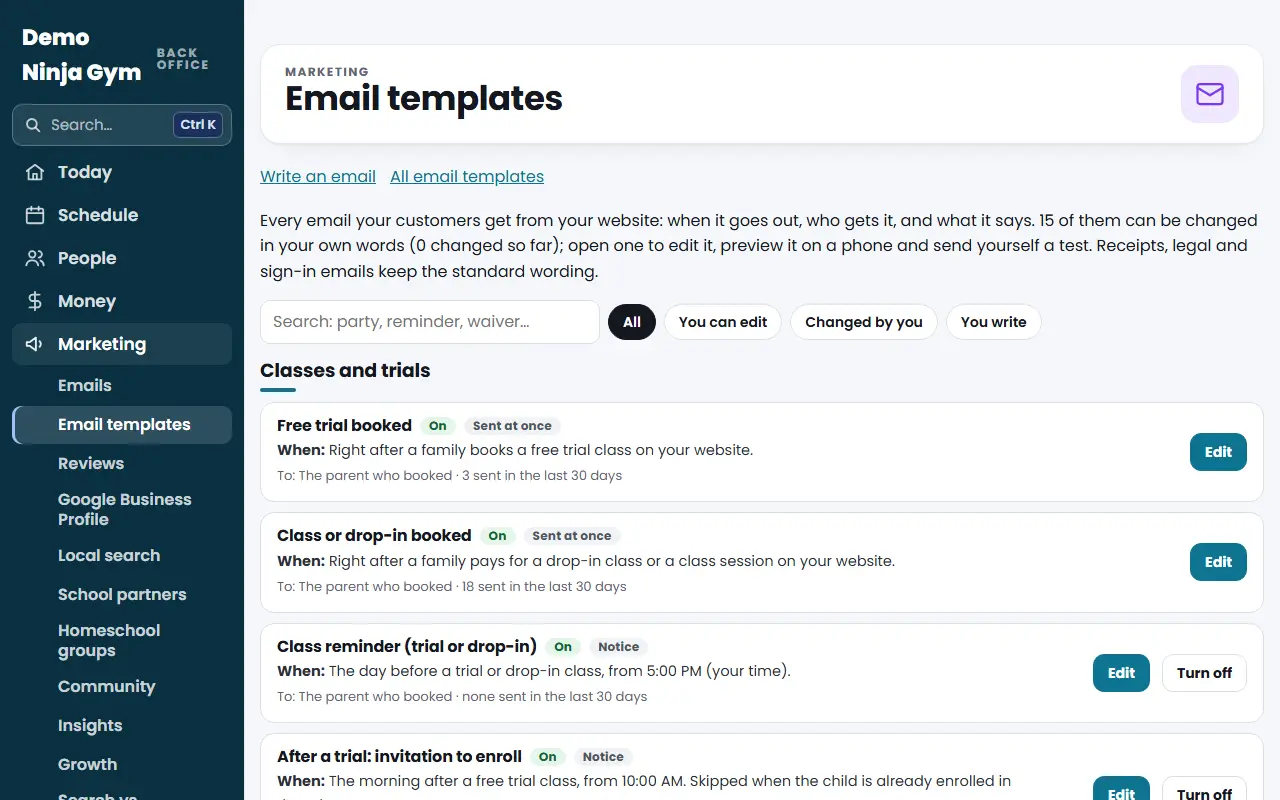
In Marketing > Email templates press + New template, name it, write it, and Save. Then pick it under Start from on the Emails page.
If you send the same kind of email often, such as a snow day closure or a camp announcement, save it once and reuse it.
Before you begin
- Owners and managers can create templates. Other staff can only look.
Steps
- Open Email templates.
- Scroll to Your saved templates and press + New template.
- Enter a Template Name (Only You See It), such as "Snow day closure".
- Fill in the Subject, Preview Text and Heading, then build the message from blocks (Text, Highlighted box, Button, Picture, Divider, Space).
- Check the preview on Desktop and Phone, and press Send me a test.
- Press Save.
Use it
- Open Emails.
- Under Write an email, find Start from and press your template's name. The subject and message are filled in, with your gym's details.
- Change what you need, choose Who Gets It and send. See sending an email.
You can also press Use it next to the template in your saved list.
What you'll see
Saved templates are listed with their subject and the date changed. Editing one keeps a version history.
Troubleshooting
Save says to name the template. Give it a name. Only you see it.
The template does not show under Start from. Reload the Emails page after saving.
Questions
Can I use the person's first name in a saved template?
No. Campaigns go to a whole list, so a saved template cannot use the first name.
How do I delete a saved template?
Open it and press Delete template.
Related articles
- How do I send an email to my customers or my news list?
- How do I see and change the emails my website sends automatically?
- Who can I send news emails to, and how do unsubscribes work?
- How do I turn camp, trial, party and waitlist reminders on or off?
- How do I connect Facebook and Instagram to the Social inbox?