How do I see and change the emails my website sends automatically?
Open Marketing > Email templates, pick an email, edit its blocks, preview it, press Send me a test, then Save. Back to the standard email undoes it.
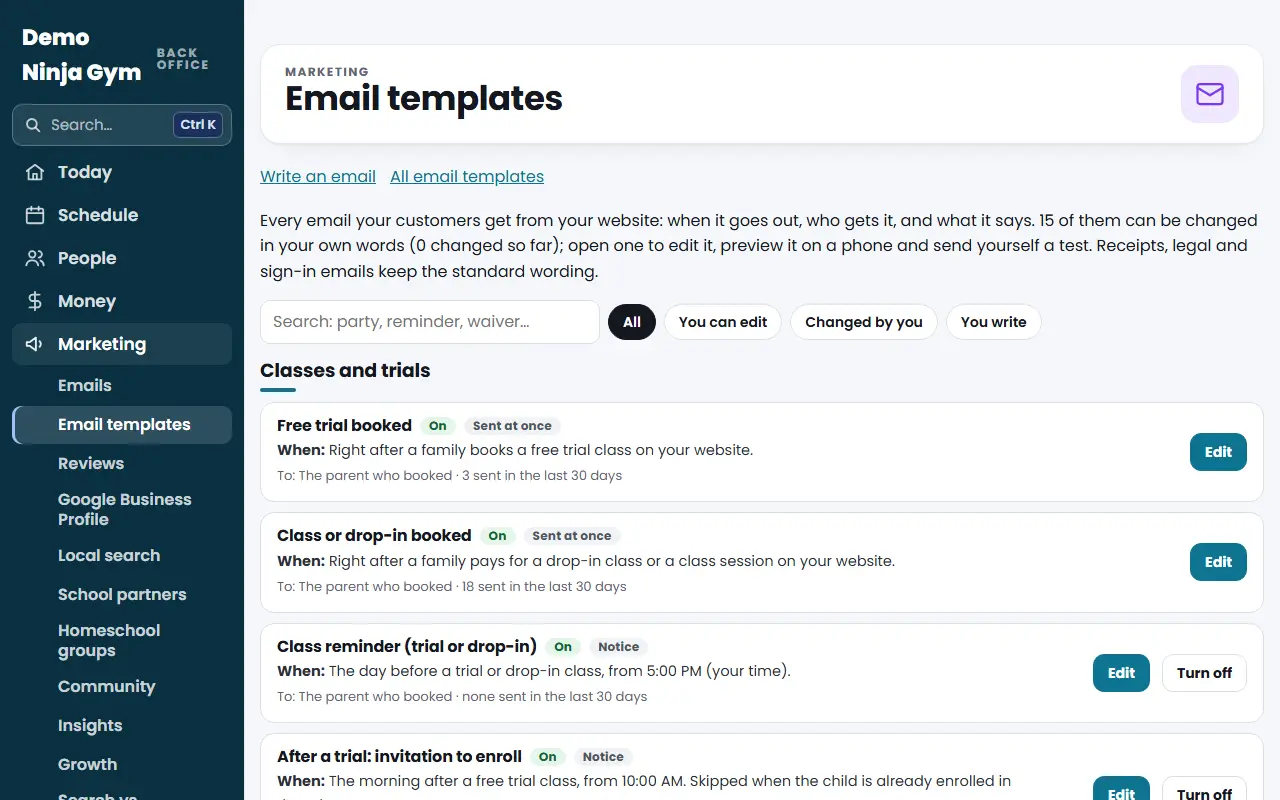
This page lists every email your customers get from your website: when it is sent, who gets it and what it says. Many of them can be written in your own words.
Before you begin
- Owners and managers can edit. Other staff can look.
- Until your site is live these emails reach only staff and test addresses, so you can edit and test now.
Steps
- Open Email templates. Emails are grouped by journey. Each row shows When it is sent, who gets it, whether it is On or Off, Your words if you changed it, and how many went out in 30 days.
- Use the search box or the filters All, You can edit, Changed by you and You write to find one.
- Press Edit on an email.
- Change the Subject, Preview Text (the grey line after the subject in most inboxes) and Heading.
- Edit the content blocks. Use Add a block for a Text, Highlighted box, Button, Picture, Divider or Space. Pictures come from your own photo library. The Details block holds the facts, such as dates and prices, and is filled in by NinjaHQ.
- To personalize, use Insert a personal detail… (such as the first name) and Insert a link….
- Check the preview on the right. Switch between Desktop and Phone. Problems are listed under it.
- Press Send me a test. It goes to your own address with sample details.
- Press Save. From now on that email goes out with your words.
What you'll see
The list marks the email Your words. Other options on the editor:
- Back to the standard email returns to the original wording.
- Version history lists earlier saves to restore.
- Don't send this email is on reminder-type emails that can be switched off. Turn it back on from the same page.
- Emails tied to a setting show a Turn off or Turn on button in the list.
Emails with fixed wording have a See the rule page explaining why they are fixed and showing the last one sent.
Troubleshooting
Save is refused. Read the first problem listed. Missing required details, a button with no address, a picture with no description, or a spammy subject can stop a save.
Test says it could not be sent. Try again in a minute. There is a limit of 20 tests an hour.
Questions
Can I change receipts and waiver emails?
Receipts, legal, security and sign-in emails keep their standard wording. Open them to see the rule and the last one sent.
Can I undo my changes?
Yes. Press Back to the standard email, or restore an earlier one from the Version history. The last 20 saves are kept.
What if my template has a mistake?
Problems show while you edit. If a saved template breaks, the standard email is sent instead.