What do the numbers on Insights mean?
Insights shows what each family has paid you, how many come back, and your membership churn. Only owners see it. Open Analytics > Insights.
Insights is your business at a glance. It adds up everything each family has paid you and shows what that says about your gym: who your best families are, how many come back, and how long memberships last.
Before you begin
- You must be signed in as an owner of the gym.
- Insights fills in by itself as families register, buy, join and pay. Before the first paid purchase it shows a notice instead of numbers.
- Until you go live, test-mode payments are included. After you go live they are left out.
Steps
- Open Insights from Analytics > Insights.
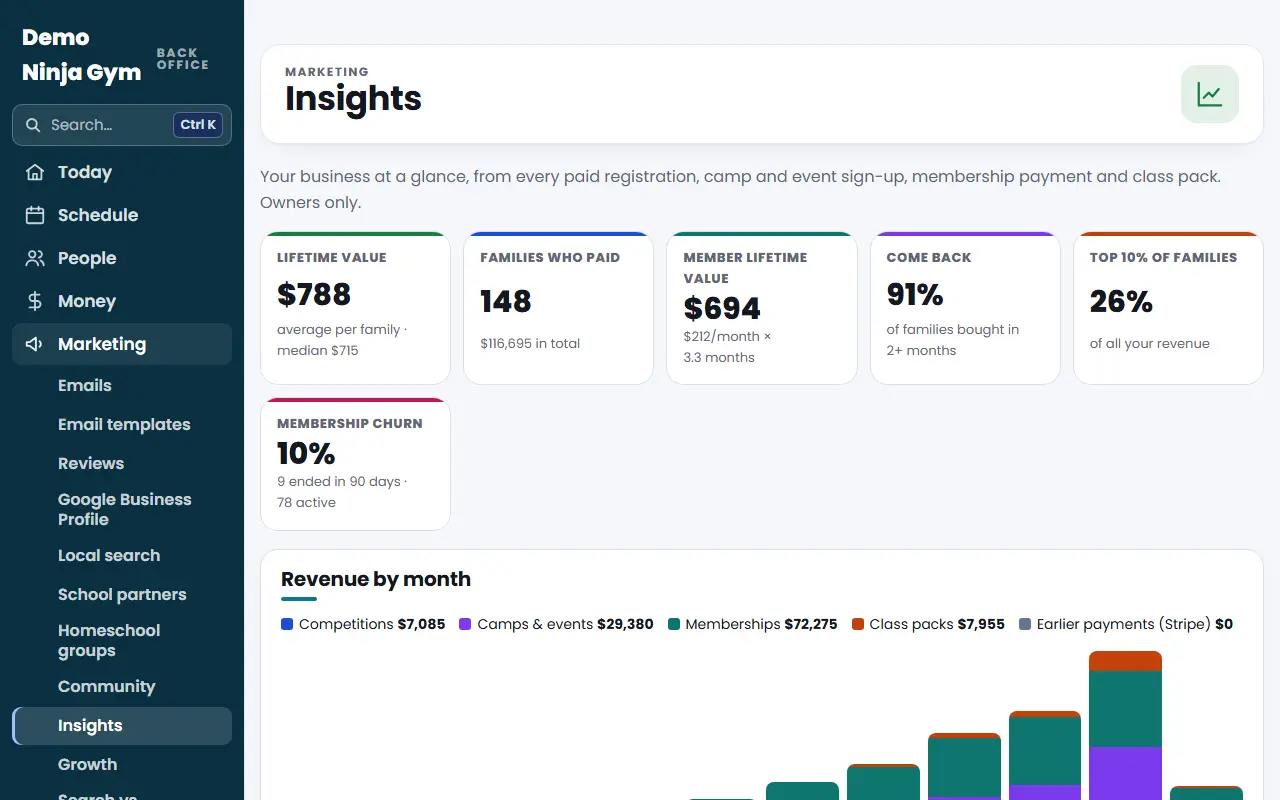
- Read the six tiles across the top:
- Lifetime value: the average a family has paid you in total, with the median beside it. A family is one email address.
- Families who paid: how many families have paid you anything, and the total.
- Member lifetime value: your average monthly membership payment times the average number of months memberships last.
- Come back: the share of families who bought in two or more different months.
- Top 10% of families: how much of your revenue comes from your best tenth.
- Membership churn: memberships that ended in the last 90 days out of all memberships active in that time.
- Scroll to Revenue by month. The bars cover the last 12 months, split by Competitions, Camps & events, Memberships, Class packs and Earlier payments (Stripe). Hover over a bar to see the month's total and how many new and returning families paid.
- Read the line under the chart for this month's new and returning families compared with last month.
- Use Families by segment and Your most valuable families to see who is behind the numbers. See Which families are champions, at risk or lost?.
What you'll see
Every number comes from paid registrations, camp and event sign-ups, drop-ins and other orders, membership payments, class packs sold at the front desk, and payments in your linked Stripe account from before NinjaHQ. The page is worked out each time you open it.
The same lifetime value also shows on each family's contact page, for owners.
Troubleshooting
I see "No paid purchases yet." Insights needs at least one paid purchase with an email address. It fills in as soon as one comes in.
The numbers look low compared with my bank deposits. Insights counts payments by email address and leaves out refunds. Cash and other payments that were never recorded in NinjaHQ are not included. Link your Stripe account to bring in earlier card payments.
A family appears twice. Insights groups by email address. If a family used two addresses they show as two families. Merge the duplicate contacts to tidy your list.
Questions
Why can't my managers see Insights?
Insights shows money and customer value, so it is for owners only. Managers are sent back to the home screen if they try to open it, and other staff see a notice that only owners can see the business insights.
Are refunds counted?
No. Refunded money is left out, and so are test-mode (sandbox) payments once your site is live.
Do I need to do anything to keep it up to date?
No. Insights is worked out from your own records every time you open the page, so it is always current.