How do I find a family or contact in my list?
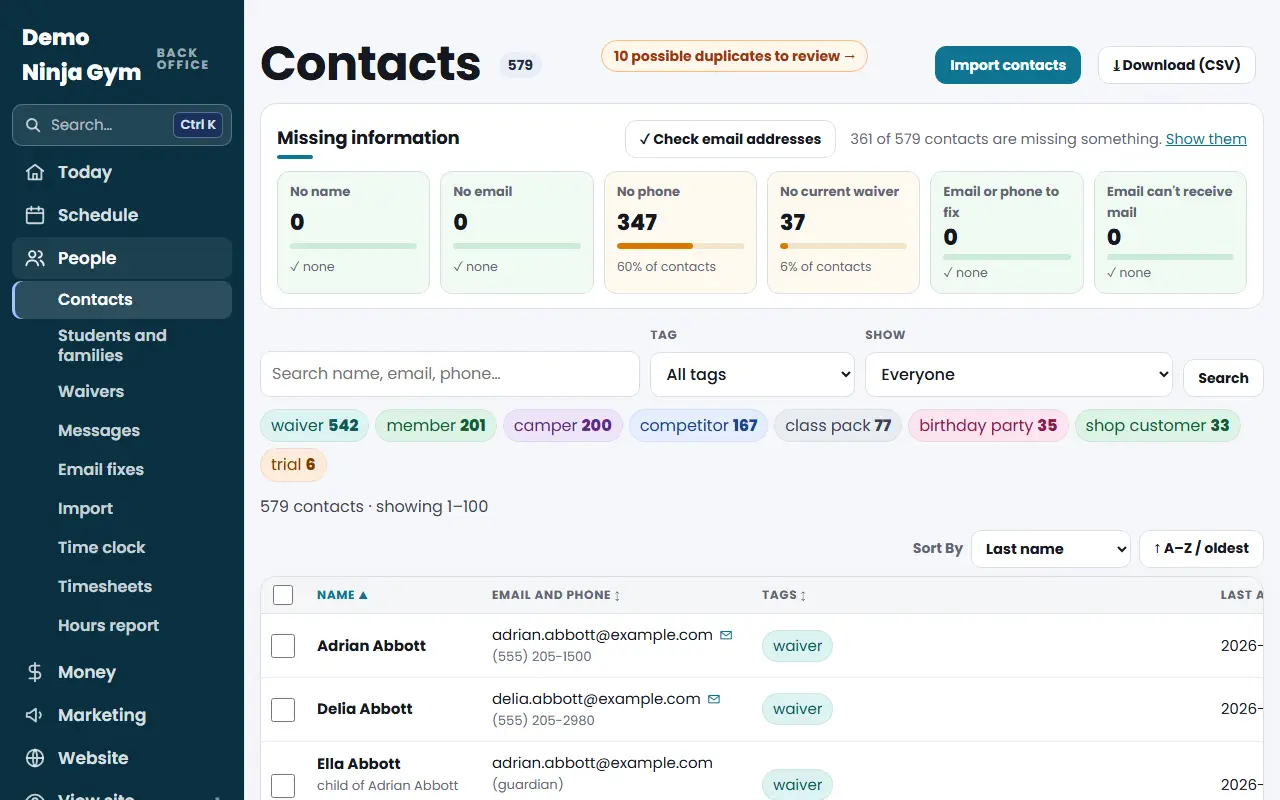
Open Customers > Contacts, type a name, email or phone in the search box, then narrow the list with the Tag and Show menus. Click a name to open that person.
Contacts is your gym's customer list: every parent, athlete, party guest and anyone who filled out a form on your website. Use it whenever you need to look someone up, check who has a waiver, or find a group to email.
Before you begin
- You need to be an owner or manager. Front desk staff see families in Students and families instead.
- Contacts fill in on their own when someone signs a waiver, registers, books a class, buys in the shop or sends the contact form. Owners can also bring in an old list: see How do I import my customer list?.
Steps
- Open Contacts from the Customers menu.
- Type a name, email address or phone number in Search name, email, phone… and press Search.
- To narrow the list, pick a Tag (every tag your gym uses, with how many people have it) or a Show choice:
- Everyone
- Members
- Waiver on file
- Children (on a guardian's email)
- No email address
- Said stop to texts
- Needs checking (an email or phone that looks wrong; only shown when there are some)
- Looks like spam or junk (only shown when there are some)
- Click a column heading (Name, Email and phone, Tags, Last activity) to sort, or use the Sort By menu: Last name, First name, Email, Phone, Last activity, Customer since or Tags. The arrow button next to it reverses the order.
- Click a person's name to open their page. See What is on a contact's page?.
The line above the list says how many contacts match, and the filters you are using show beside it with a small x to clear each one.
What you'll see
- A colored chip for each tag (the first four, then a "+" count).
- A Missing information panel at the top with tiles such as No name, No email, No phone, No current waiver, Email or phone to fix and Email can't receive mail. Click a tile to see just those people.
- If NinjaHQ thinks two records are the same person, a line at the top reads "possible duplicates to review". See How do I merge duplicate contacts?.
Troubleshooting
Nobody matches my search. Try less of the name, or search by the phone number. Type only the digits, with no dashes or parentheses. The search also looks at guardian names and tags. Click the x beside your search to clear it.
I only see "No contacts yet." Your list is empty. Contacts appear as families use your website, or an owner can import a list from the system you used before.
I can't find someone I know signed up. Look for a child under the parent's name or email. Children without an email are listed under their guardian.
Questions
Why is a child listed under a parent's email?
Children usually do not have their own email. They are kept as their own contact, linked to the parent or guardian's email, and the row says child of and the guardian's name.
How many contacts show on one page?
100 per page. Use Previous and Next at the bottom of the list, or narrow the list with the search box and filters.
Who can see the Contacts list?
Owners and managers. Front desk staff and website helpers do not see it.