What is on a contact's page, and how do I change it?
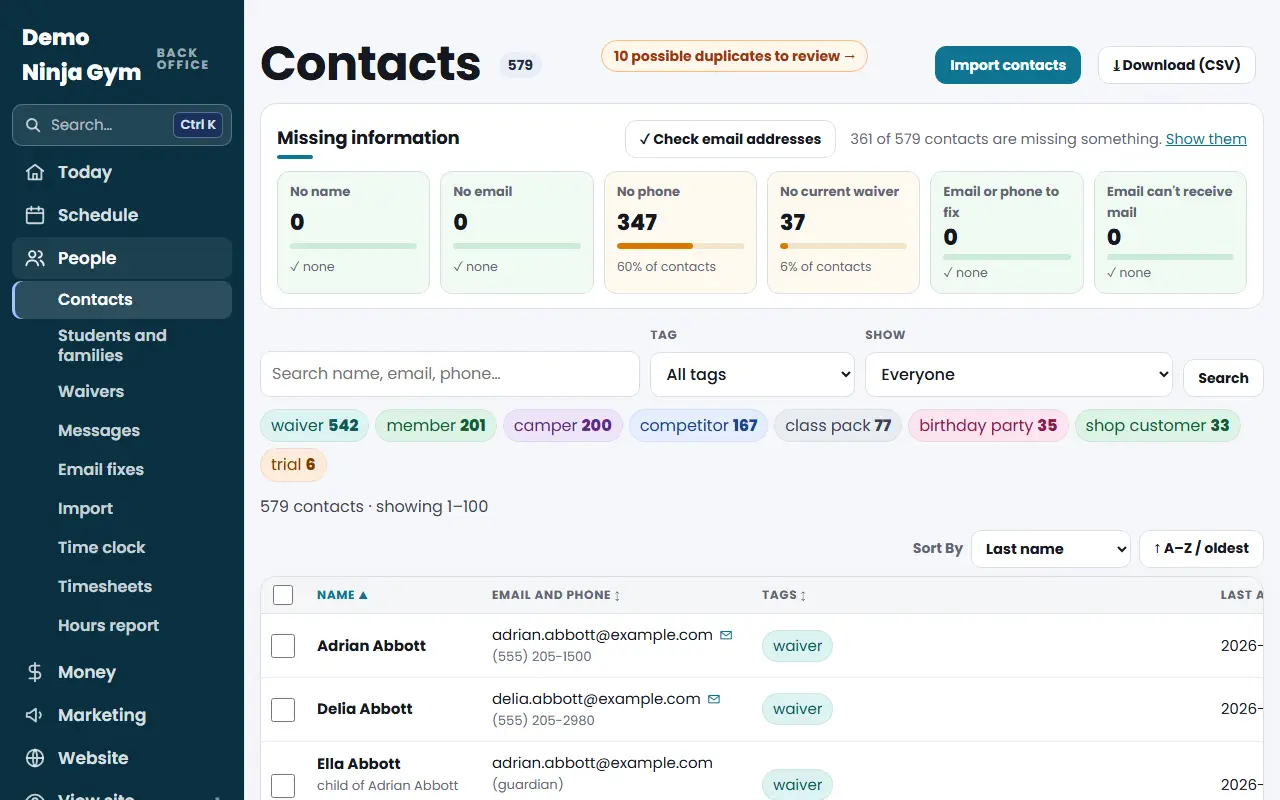
Click a name in Customers > Contacts to see details, waiver, membership, visits, emails and notes. Press Edit to change details; anyone can add a note.
Every person has one page that pulls together everything your gym knows about them: how to reach them, their waiver and membership, check-ins, orders, emails and your own notes.
Before you begin
- Open the list first: Contacts. See How do I find a family or contact in my list?.
- Owners and managers can edit. Everything on the page is visible to owners and managers.
Steps
To read a contact
- Open Contacts and click a name.
- At the top you see their initials, tags, and quick buttons: Email, Call, Text and Add note, plus Edit. Call and Text only show when there is a phone number, and Text is hidden if they said stop to texts.
- Below are tiles for Waiver (on file, expired or none), Membership, Visits, Last seen and, for owners, Lifetime value.
- Scroll for the details (phone, address, birthday, guardian and children), About, Health and Emergency information from their waiver, and everything linked to their email: registrations, orders, memberships, class packs, check-ins and waivers. Empty sections fold into one line.
- Emails and messages lists the emails NinjaHQ sent them, newest first, with what the email said.
To change details
- Press Edit at the top of the page (owners and managers).
- Change the fields, such as First Name, Last Name, Email, Phone, Guardian Name, Guardian Email, School, Grade, Shirt Size, Level, Medical Notes and Allergies and the emergency contact. Add or remove tags with + Tag.
- Press Save changes.
NinjaHQ cleans what you type: emails are lowercased and obvious typos like gmial.com are fixed, phones are put in one format, and a name typed all in capitals is corrected. An email that another contact already has is refused; that usually means the two should be merged. See How do I merge duplicate contacts?.
To add a note or a follow-up
- In Notes & follow-ups, type the note.
- Optionally set Follow Up On to a date.
- Press Add note. When the follow-up is due it shows under Needs you on your dashboard; press ✓ Done when finished.
What you'll see
- The change shows right away and appears in your gym's History.
- Notes are visible to everyone who can open the page.
- A contact with a card on file, an invoice or a family balance shows those in their own sections.
Troubleshooting
There is no Edit button. Only owners and managers see it. Website helpers and front desk staff cannot open Contacts.
Call or Text is missing. The contact has no phone number saved, or (for Text) they said stop to texts.
It says the email is not valid. Check for spaces or a missing @. NinjaHQ will not save an address it cannot read.
Questions
Can a manager edit a contact?
Yes. Managers can edit details and add notes. Deleting a contact and importing a list stay with owners.
Do medical notes show in the CSV download?
No. Medical notes and allergies stay in the back office and are left out of the contacts download.
What happens to a child's page?
A child is their own contact, linked to the guardian. Their page also shows what is under the guardian's email, such as orders and registrations.