How do I create a competition and open registration?
Open Programs > Competitions, press New competition, fill in name, type, dates and entry price, set Status to Published, and families can register online.
A competition is one event on your website where athletes register and pay online. Everything for it, from the roster to the run order, lives on that competition's page in the back office.
Before you begin
- Connect Stripe first so families can pay online. Competition entry fees are paid by card through your Stripe account.
- Have the dates, entry price and (if you have them) the wave times ready.
Steps
- Open Competitions and press New competition.
- Type the Event Name and choose the Competition Type (for example Challenge course, Flow course, Skills competition or Team competition). Families see the type when they register.
- Choose the League and Tier / Series. Choosing Tier 1 adds the Elite division to registration. Choose "Local / no league" if it is your own event.
- Optional: paste the league's schedule into Wave Times. Put a day on its own line, then one line per wave with a bar and the start time, like
Teens | 9AM. Families see the times on the competition page, when they register and in their confirmation. For a double header, paste it into both competitions. - Set the First Day, and the Last Day if it runs more than one day. Set Age Groups by Age On to the date the league uses to figure out an athlete's age (WNL uses January 1 of the championship year).
- Set the Entry Price (USD). Optionally set Registration Opens, Registration Closes (End of Day) and Capacity (Paid Athletes). A blank open date means open now, a blank close date means open until the event, and a blank capacity means no limit.
- Add links if you have them: Live Stream (YouTube Link), Results Link, Ninja Master Event and League Page for This Tier. Add an Event Image (Flyer) and a Description (Shown on the Event Page) if you like.
- Set Status to Published and press Create event.
What you'll see
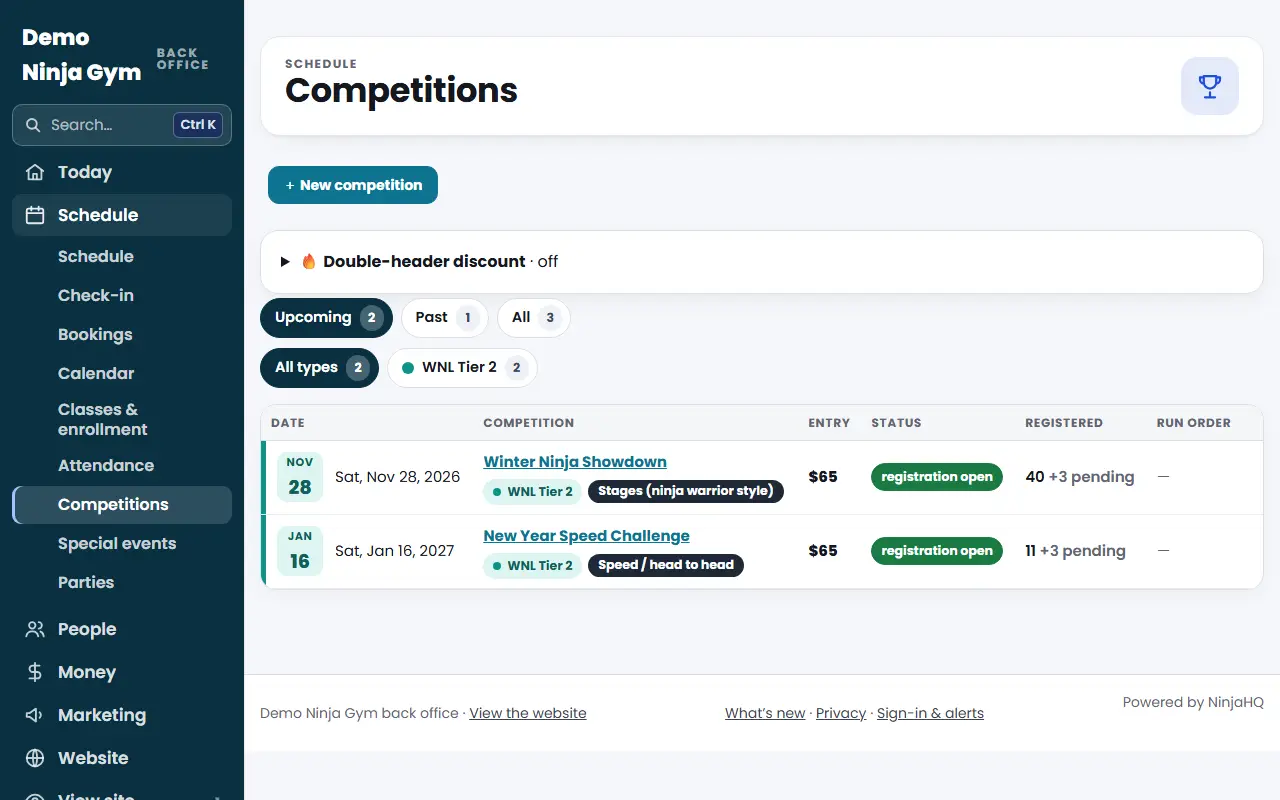
The competition appears on your website and in the Competitions list. The Status column shows "registration open" while families can sign up, "sold out" once the capacity is reached, "published" before registration opens, and "past" after it is over. The list has filters for Upcoming, Past and All, and for each type.
An existing competition opens with a summary line and a jump menu (Registrations, Athlete info, Shirts, Send to WNL, Volunteers, Run order, Event details). Your event details are folded under Event details; press Save event after any change. View public page opens the page families see.
Troubleshooting
Registration does not open. Check that the entry price is above $0, the opening date has passed, and Status is Published.
The Delete button is missing. It only shows on competitions nobody has paid for. Once athletes have paid, refund them (see refund a registration) and set the competition back to Draft to hide it.
Questions
Why does my competition say "no entry fee: registration off"?
Online registration only opens when the Entry Price is more than $0. Open the competition, set the price under Event details, and save.
Can I hide a competition while I set it up?
Yes. Leave Status on Draft (hidden). It shows in your back office with a "draft" tag but not on your website. Switch it to Published when you are ready.
Can I delete a competition?
Only while nobody has paid. The Delete button on the Competitions list disappears as soon as one athlete has paid.